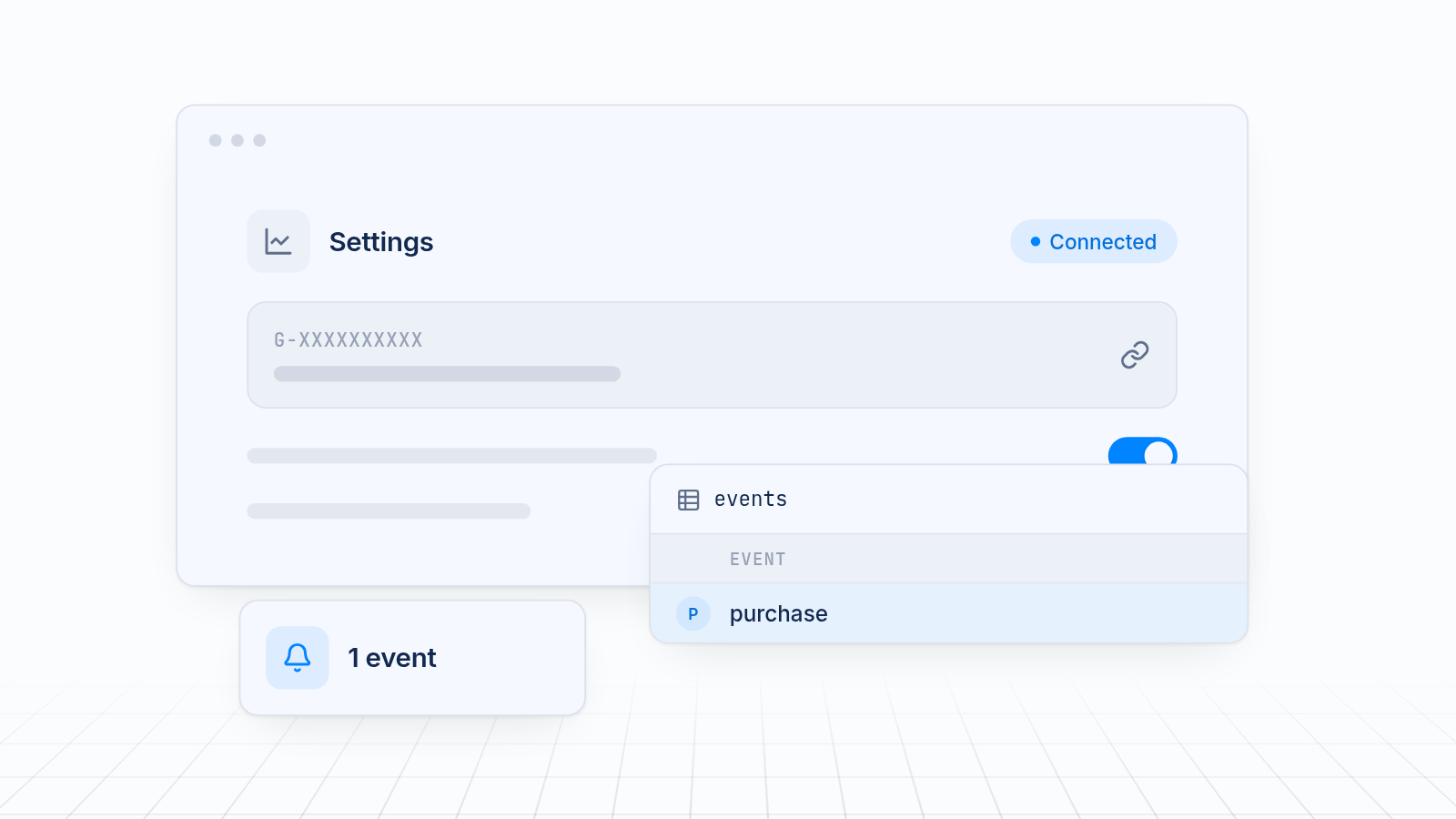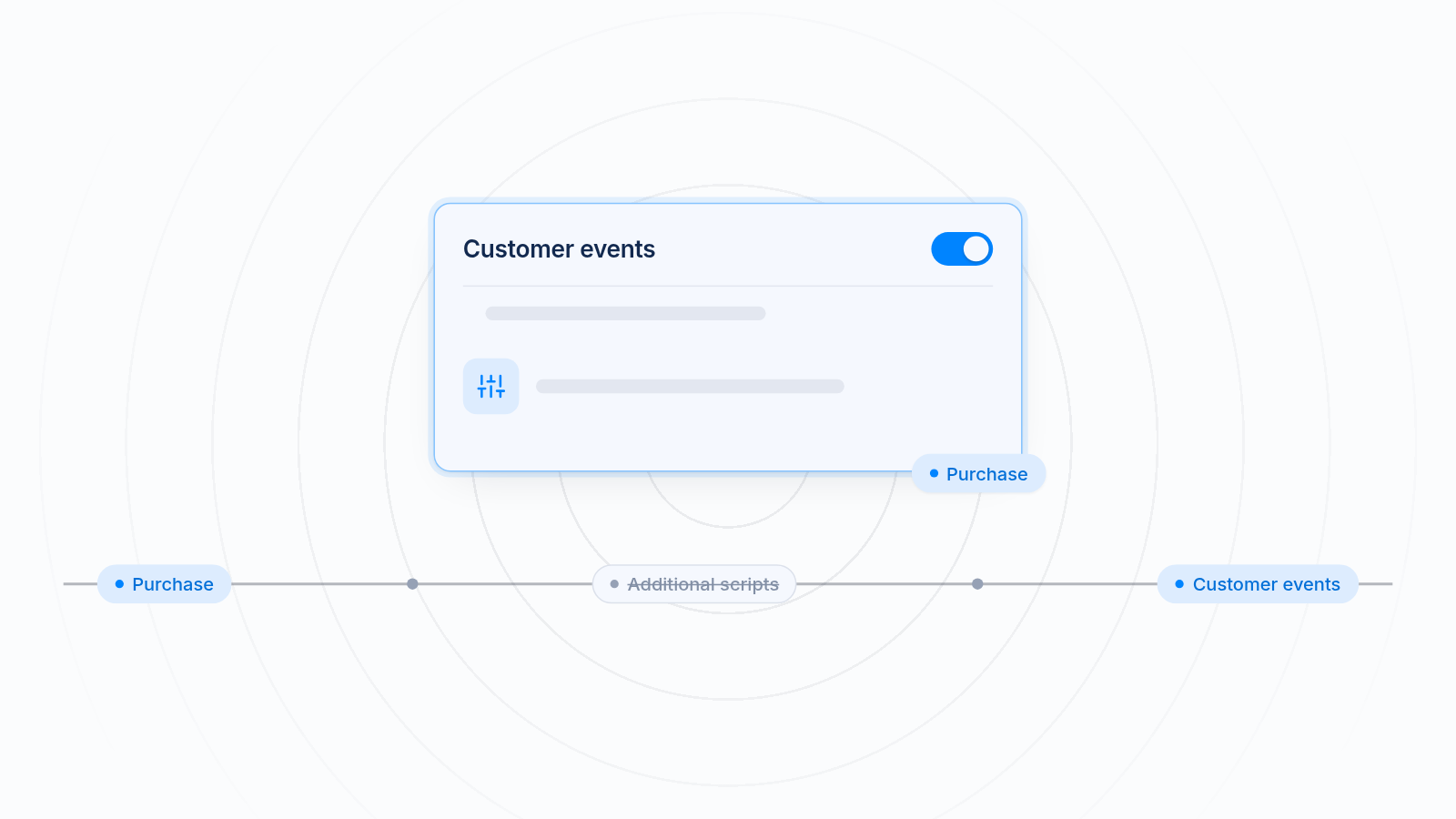
If Shopify additional scripts are gone from your store, you need to move your Facebook and TikTok pixels. Move them into Customer events, either as a custom pixel you set up by hand or through an app like MultiPixels, where no code or tech team is required. Until you do, purchases can go missing from Ads Manager and your ad spend keeps running on thin data.
This guide covers what Shopify switched off, how the replacement works, and two ways to move your pixels. It ends with a checklist to confirm purchases fire after the move.
Key takeaways
Pixel code pasted into Additional Scripts or checkout.liquid on the thank you and order status pages no longer runs.
When purchase data stops flowing, Facebook and TikTok can't learn from your sales, and you pay for clicks they can't judge.
Customer events, app pixels and custom pixels are the supported replacement.
You can move pixels by hand with a custom pixel, or install them with MultiPixels and skip the code.
Always confirm the move with a test order, a check in Meta and TikTok, and a comparison with Shopify Analytics.
What Shopify switched off and when
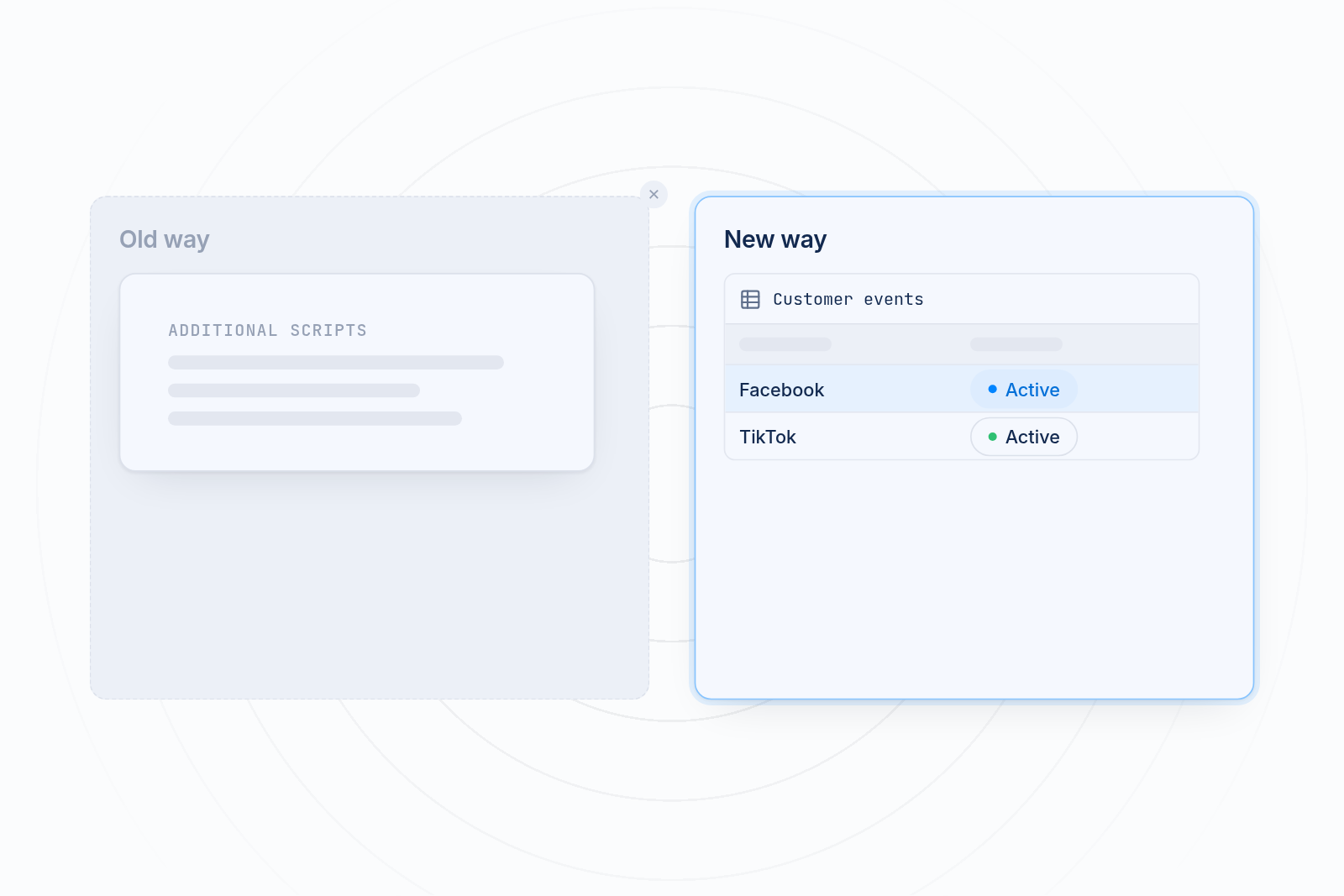
Shopify turned off Additional Scripts and checkout.liquid on the thank you and order status pages. Checkout Extensibility and Customer events replace them. Shopify Plus stores were moved first, and stores on other plans followed. The dates have shifted over time, so check the Shopify Help Center for the ones that apply to your plan.
The old setup let you paste a snippet into a box and have it run on the page after checkout. Many stores kept their Facebook and TikTok purchase tags there. When the box stopped working, those tags stopped firing. Ads Manager gave no warning. The purchases just stopped showing up.
Why missing purchase data wastes ad spend
Facebook and TikTok bid based on the sales they can see. If they never hear about a purchase, they can't find more people like your buyers, and your campaigns run on guesses.
Your reports also stop agreeing. Shopify shows orders. Ads Manager shows few or none. You can't tell which ads work, so budget moves the wrong way. Some stores pause good campaigns because they look like they lose money. Fixing the pixel is cheaper than weeks of spend on bad data.
How Customer events, app pixels and custom pixels replace Additional Scripts
Customer events is the Shopify area where all pixels now live. It supports two kinds, app pixels and custom pixels. You find it under Settings > Customer events.
- App pixels are installed by an app. The app sets up the pixel and sends the events for you.
- Custom pixels are code you add yourself. You paste the platform's code and tell it which Shopify events to listen for, such as a completed checkout.
Pixels here run in a protected space, apart from your theme. So you can't copy an old snippet over unchanged. Code that read page details directly won't work the same way, and a custom pixel takes some rebuilding. The upside is that a theme update won't break your tracking.
Before you move anything: list what you have
Write down every pixel you currently run so you don't miss one.
- Go to Settings > Checkout and look at the old Additional Scripts box if it is still visible. Copy what is there into a note.
- Check your theme files for pixel code too, including theme.liquid.
- Note each platform, its pixel ID and which events it tracked, such as purchase, add to cart and view content.
- Look at Settings > Customer events to see what is already running.
Remove duplicates as you go. Two copies of the same pixel count each sale twice, and your ROAS will look better than it is.
Route 1: Move the pixels by hand with a custom pixel
A custom pixel is free and gives you full control. It needs careful pasting and testing, and some time for each platform.
- In Shopify admin, go to Settings > Customer events.
- Click Add custom pixel and name it, such as
Facebook PurchaseorTikTok Purchase. - Set the customer privacy options so they match how you handle cookie consent.
- Paste the platform's base code, then add the instructions that send a purchase when a checkout completes. Include the order value and currency.
- Click Save, then Connect.
- Repeat for the second platform.
Watch for these problems:
- Old code still running. Remove the pixel from your theme once the new one works, or purchases may count twice.
- Missing value or currency. A purchase with no value can't show your return on ad spend.
- Calls that don't carry over. Code written for a normal web page often fails in the protected space. Expect to adjust it.
- No backup. If you get it wrong, you have no fallback. Keep your note of the old setup.
If you're not comfortable with code, this route can eat an afternoon. It suits you if you want exact control and have someone who can test it.
Route 2: Install the pixels with MultiPixels
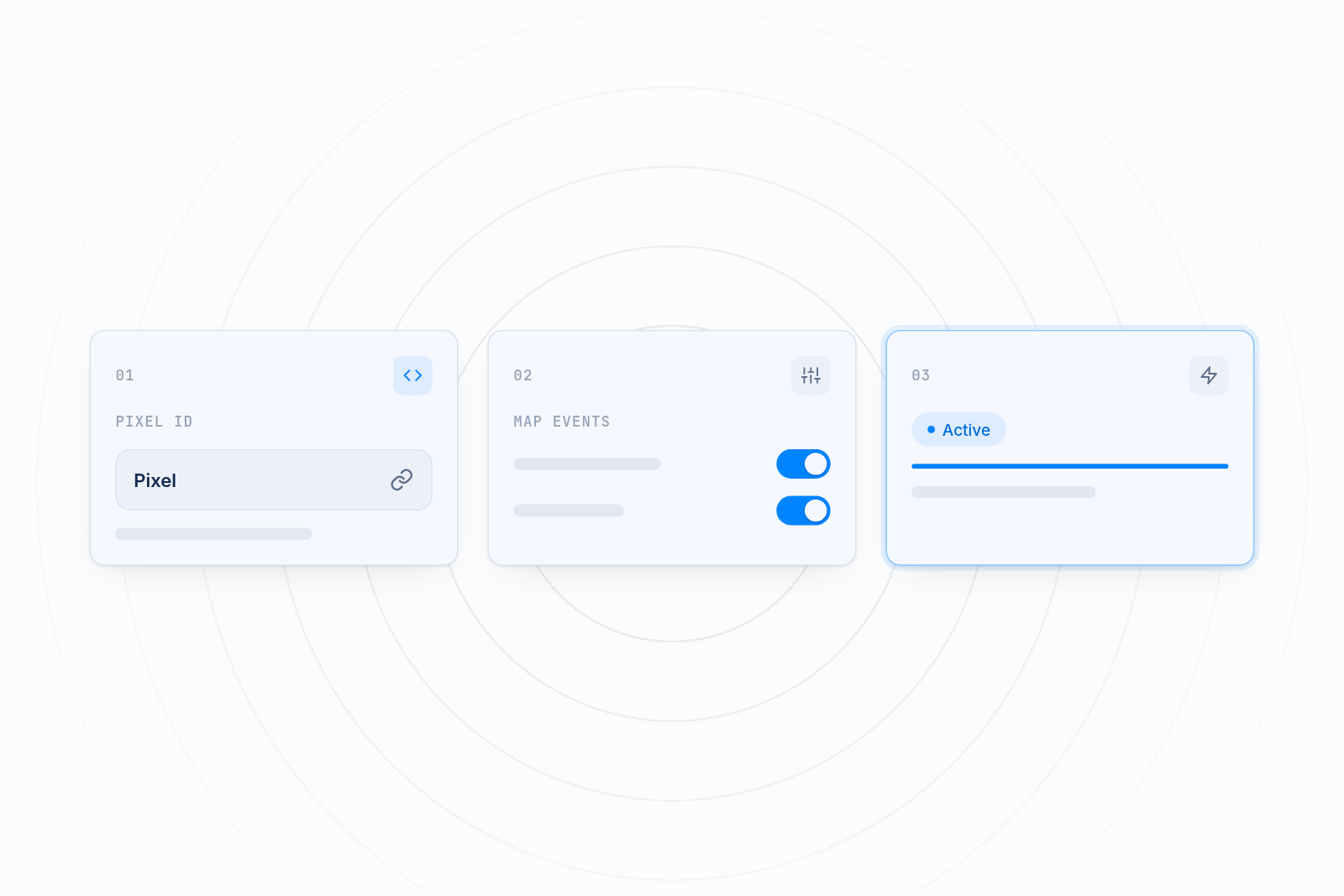
MultiPixels installs Facebook, Instagram, TikTok, Snapchat, X and Pinterest pixels through Shopify's Customer events, with no code or tech team required. You paste your pixel IDs, map your events and save. Nothing goes into your theme.
- Install the app. Find MultiPixels in the Shopify App Store and install it.
- Add your platforms. Choose Facebook and TikTok from the list. You can see the current list on the integrations page.
- Paste your pixel IDs. Copy them from Meta Events Manager and TikTok Events Manager.
- Clear old code. Remove any older pixel code from your theme or leftover custom pixels so nothing fires twice.
- Turn it on. Confirm each pixel shows as active.
MultiPixels also adds a backup pixel, so you keep collecting data if an ad account is restricted. It includes tools for custom and lookalike audiences. It doesn't replace your ad platforms or write your ads, and it is a paid app once the trial ends.
How the two routes compare
The table compares the two ways to move your pixels. The custom pixel entries are general, so check details against Shopify's own help pages.
| Custom pixel by hand | MultiPixels | |
|---|---|---|
| What it does | You paste each platform's code into Customer events | Installs and manages pixels through Customer events |
| Code needed | Yes, to send purchase and its value | No code or tech team required |
| Platforms | Anything you can code | Facebook, Instagram, TikTok, Snapchat, X and Pinterest |
| Backup pixel | Only if you build it | Yes |
| Audience tools | No | Custom and lookalike audience builders |
| Cost | Free, plus your time | $9.99, $19.99 or $39.99 a month after a 10-day free trial |
| Best for | Stores with someone who can write and test code | Store owners and marketers who want it done without a developer |
If you only need one simple pixel and have the time, the custom route works. If you run several ad platforms, one app keeps your setup in one place and makes duplicates easier to spot.
Checklist: confirm purchase events still fire
A test order is the only reliable way to know the move worked. Run through this list before you raise any budget.
- Place a test order. Open your store in a private browser window, add a product to your cart and complete checkout.
- Check Meta. In Meta Events Manager, open the test events view and look for the purchase. Confirm it appears once, with the right value and currency.
- Check TikTok. In TikTok Events Manager, look for the purchase event. Confirm the same things.
- Look for doubles. If a purchase shows twice, find and remove the second copy of the pixel.
- Compare with Shopify Analytics. Pick a short date range. Note the orders and sales in Shopify, then the purchases and revenue in each ad platform.
Expect small gaps. Ad platforms count sales tied to ad clicks, so they usually report fewer than Shopify shows in total, and they may use a different attribution window. You should not see zero-value purchases, double counts or whole days with no purchases. If the numbers still differ widely, check for duplicate pixels, a missing order value, and cookie consent settings that block the event. A pixel and Shopify Analytics mismatch can also come from other causes, so read that guide if the gap persists.
Move your pixels and start the free trial
Missing purchases mean wasted ad spend, and the fix doesn't need a developer. Install the MultiPixels app from Shopify and start the 10-day free trial. Add your Facebook and TikTok pixels, place a test order, and see your purchases show up again.