Custom pixels on Shopify let you send your store's events to tools that do not have their own Shopify app, or track things the standard integrations do not. They run in Shopify's Customer events, on every plan, including checkout.
This guide covers what custom pixels are, when you need one, how to add one, and how to test it.
Key takeaways
- A custom pixel is JavaScript you add in Settings > Customer events to send store events to another tool.
- It works on every Shopify plan and can track checkout and purchase events.
- It runs in a sandbox, listens for Shopify's standard events with
analytics.subscribe, and only accepts JavaScript. - Use an official app pixel when one exists. Use a custom pixel for unsupported tools or extra events.
- Shopify has retired checkout Additional Scripts, so customer events are now the way to track checkout.
Understanding Custom Pixels in Shopify
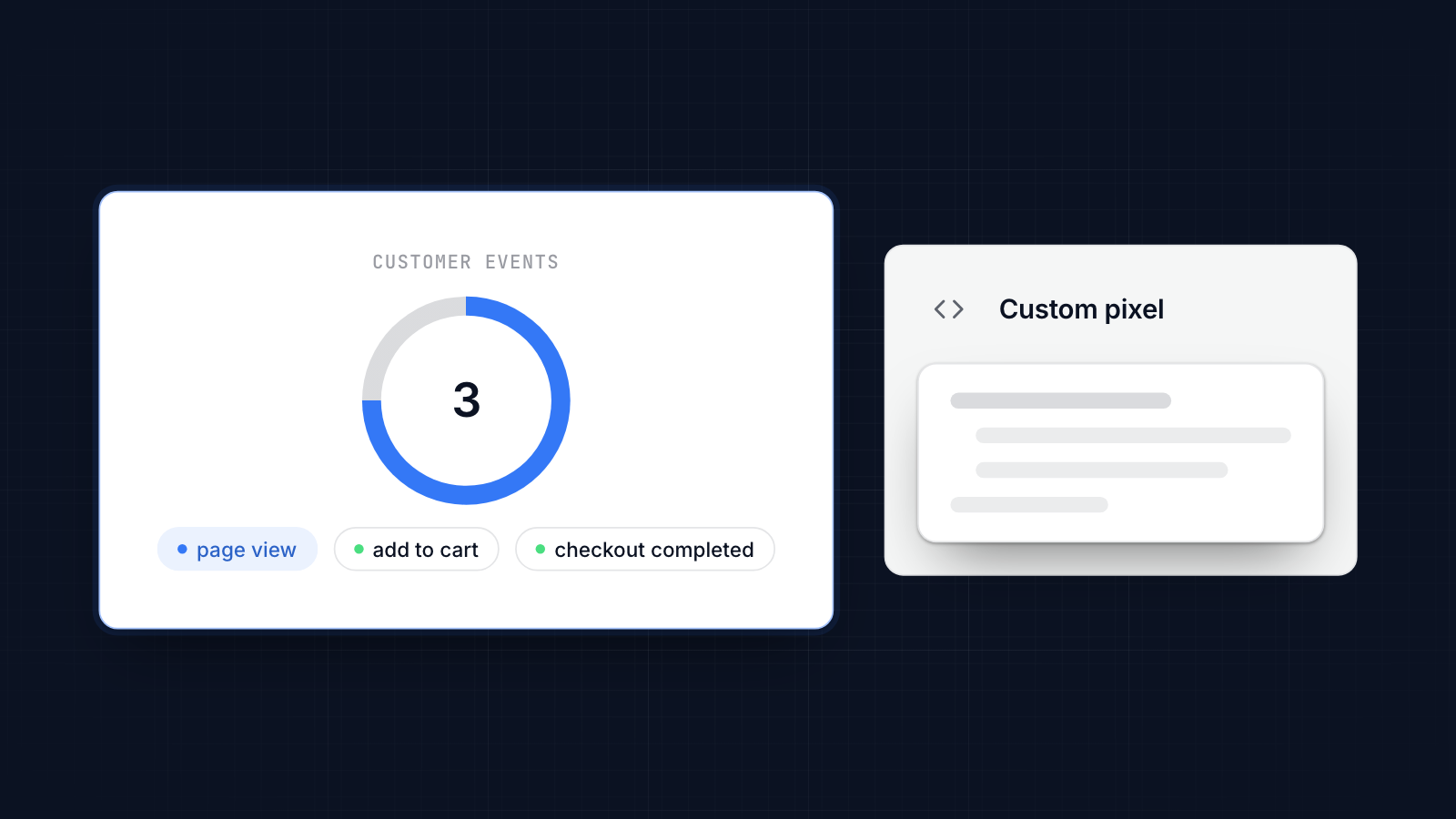
A custom pixel in Shopify is a piece of JavaScript you add in Settings > Customer events. It listens for events in your store, such as a product view, an add to cart or a completed checkout, and sends them to another tool.
Shopify has two kinds of pixel. App pixels are added by apps, such as the Facebook & Instagram, TikTok or Google & YouTube apps, and are set up for you. Custom pixels are ones you write or paste yourself.
Custom pixels are for when no app covers what you need: an ad network without a Shopify app, a custom analytics tool, or events the apps do not send. They can send data to ad platforms, analytics tools, CRMs and marketing automation tools.
Benefits of Using Custom Pixels
Custom pixels give you control over what is tracked and where it goes.
Advanced Conversion Tracking
You can track conversions beyond purchases, such as a newsletter sign-up, a particular product combination added to the cart, or a quiz completed.
2. Platform Compatibility
If a tool has no Shopify app, a custom pixel is how you connect it. Reddit, LinkedIn and many affiliate and analytics tools are added this way, and so are purchase events for the Twitter pixel.
3. Improved Ad Performance
Accurate events, including purchases with order values, give ad platforms better data to optimize with, whether that is Meta's lookalike audiences or Google's smart bidding.
4. Cross-Platform Attribution
Sending the same events to every tool you use makes it easier to compare how customers found you and what led to a sale.
5. Event Customization
You can send events the standard integrations do not, such as clicks on a particular button. Our guide to tracking clicks and form submissions with the Meta pixel on Shopify walks through an example.
How to Add Custom Pixels to Your Shopify Store
There are three ways to add tracking code to a Shopify store. For most needs, a custom pixel in Customer events is the right one.
Using Shopify’s Native Pixel Integration (Basic Plans)
Every Shopify plan can add custom pixels:
- In your Shopify admin, go to Settings, then Customer events.
- Click Add custom pixel and name it.
- Set its customer privacy settings: which consent it needs (marketing, analytics) and whether its data counts as a data sale.
- Paste your JavaScript into the code box.
- Save, then click Connect to turn it on.
Custom pixels run in a sandbox, separate from your theme, so they cannot break your store's pages. Inside the sandbox, you listen for Shopify's standard events with analytics.subscribe and send them to your tool. For example, to send a purchase:
analytics.subscribe('checkout_completed', (event) => {
  const checkout = event.data.checkout;
  // Send the purchase to your tool here, using for example:
  // checkout.order.id, checkout.totalPrice.amount, checkout.currencyCode
});
Other standard events include page_viewed, product_viewed, product_added_to_cart, checkout_started and payment_info_submitted.
A few rules to know:
- JavaScript only. Remove any
<script>or<noscript>tags from code a platform gives you, and load its library from inside your JavaScript. - Consent. In regions where you require consent, the pixel only runs for visitors who agree, based on the privacy settings you chose.
- Checkout timing.
checkout_completedfires when the thank-you page loads, so an order where the customer closes the tab first may not send an event.
If you would rather not write code, a pixel app can install and manage pixels for the major platforms for you.
Using Shopify Plus for Checkout Page Tracking
Older guides tell Shopify Plus stores to paste tracking code into Settings > Checkout > Additional scripts for the thank-you and order status pages. Shopify has retired that box on upgraded checkouts, so those scripts no longer run.
Every store, Plus or not, now tracks checkout through Customer events: app pixels or custom pixels subscribed to the checkout events above. Plus stores can also add checkout UI extensions, but those are for changing what the checkout shows, not for tracking.
Manual Installation via theme.liquid
You can still paste tracking code into your theme:
- Go to Online Store > Themes.
- Click the three dots next to your live theme and choose Edit code.
- Open
theme.liquid. - Paste the code just before
</head>or</body>, depending on when it should load.
This only runs on your storefront pages, not on checkout, so it cannot track purchases. A mistake in theme.liquid can also break your store, so duplicate the theme and test on the copy first. Use this method only for code that has to run on the page itself, such as a chat widget.
Best Practices for Custom Pixel Setup
A few habits keep custom pixels reliable.
Test in a sandbox or draft theme first.
Test custom pixels with your tool's debugging view and a test order before relying on them. For theme code, test on a duplicate theme in preview.
Use tags and data layers.
Use consistent event names across your pixels, so reports line up and debugging is easier.
Minimise page load impact.
Load each tool's library once and avoid duplicates. Custom pixels run in a sandbox, which keeps them off your main page.
Document everything.
Keep a list of each pixel: what it does, where it sends data, who added it and when.
Validate events regularly.
Use tools like Meta Pixel Helper, Google Tag Assistant or TikTok Pixel Helper, and each platform's events view, to check that events still arrive as expected.
When to Use Custom Pixels Over Default Ones
Use an app pixel when the platform has a Shopify app, such as the Facebook & Instagram app for the Facebook pixel. Use a custom pixel when:
- The ad network or tool has no Shopify app
- You need events beyond what the app sends
- You want to send events to a custom analytics tool or data warehouse
- You want to fire events based on specific conditions, such as order value
Do not add a custom pixel for a platform whose app already sends the same events, or you will count everything twice.
Troubleshooting and Testing Custom Pixels
If a custom pixel is not working, these checks find most problems.
Use Pixel Debugging Tools
- Meta Pixel Helper and Test Events
- Google Tag Assistant and GA4 DebugView
- TikTok Pixel Helper and Test Events
They show which events arrived and with what data.
Check Browser Console
Open your store in Chrome, press F12 and check the Console tab for errors from your pixel code.
Confirm Event Trigger Logic
Check you subscribed to the right event names and that your code reads the fields that event actually contains. Log the event while testing to see its data.
Check the pixel is connected
A custom pixel does nothing until you click Connect. Also check its privacy settings: if it needs consent, test with consent given.
Custom pixels give you precise control over what your store sends to each tool, on every plan and through checkout.
MultiPixels installs Meta, TikTok, Pinterest, Snapchat and GA4 pixels on a Shopify store without editing theme code or writing custom pixels. Install MultiPixels on your Shopify store to run several tracking pixels at once.