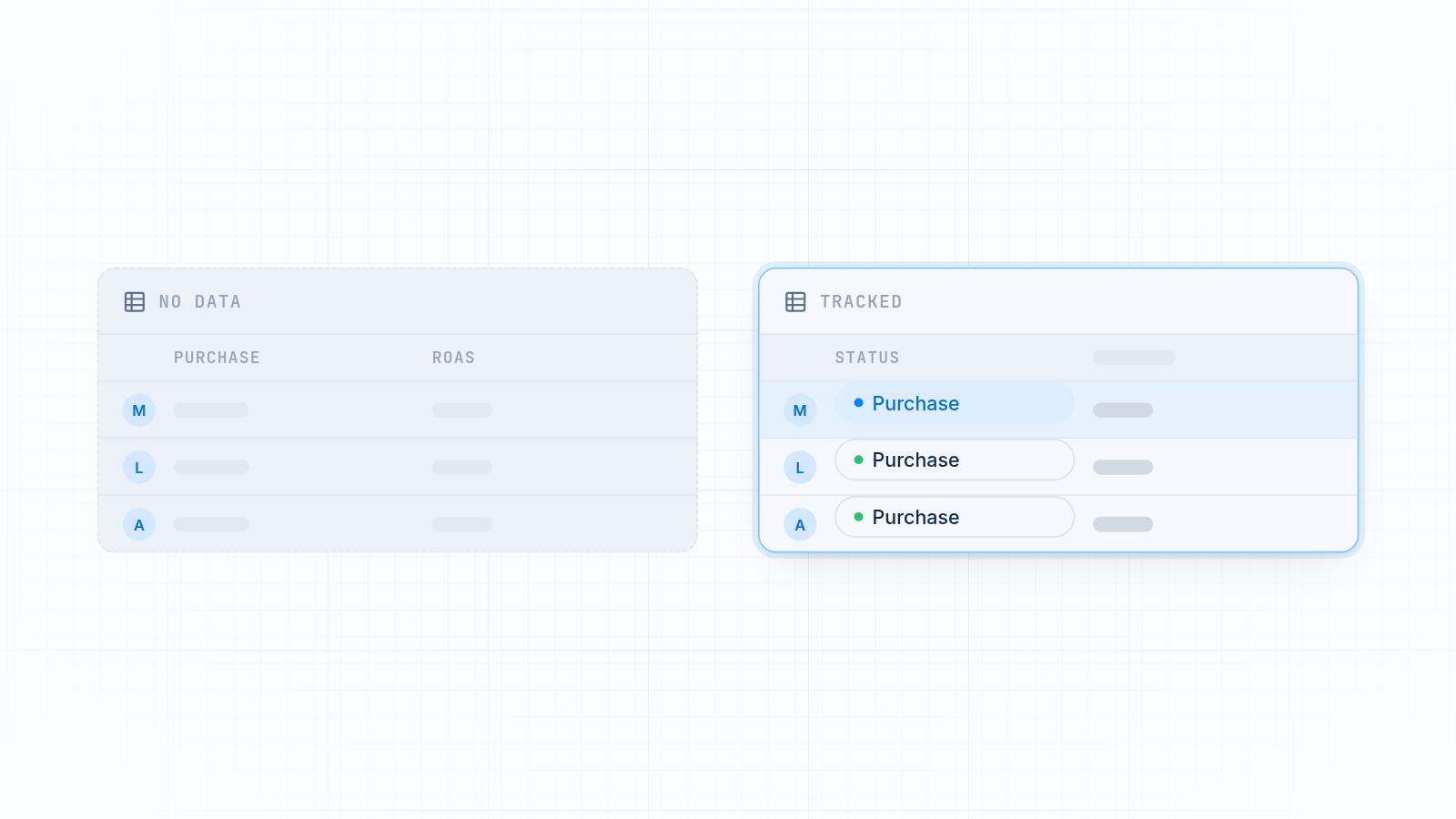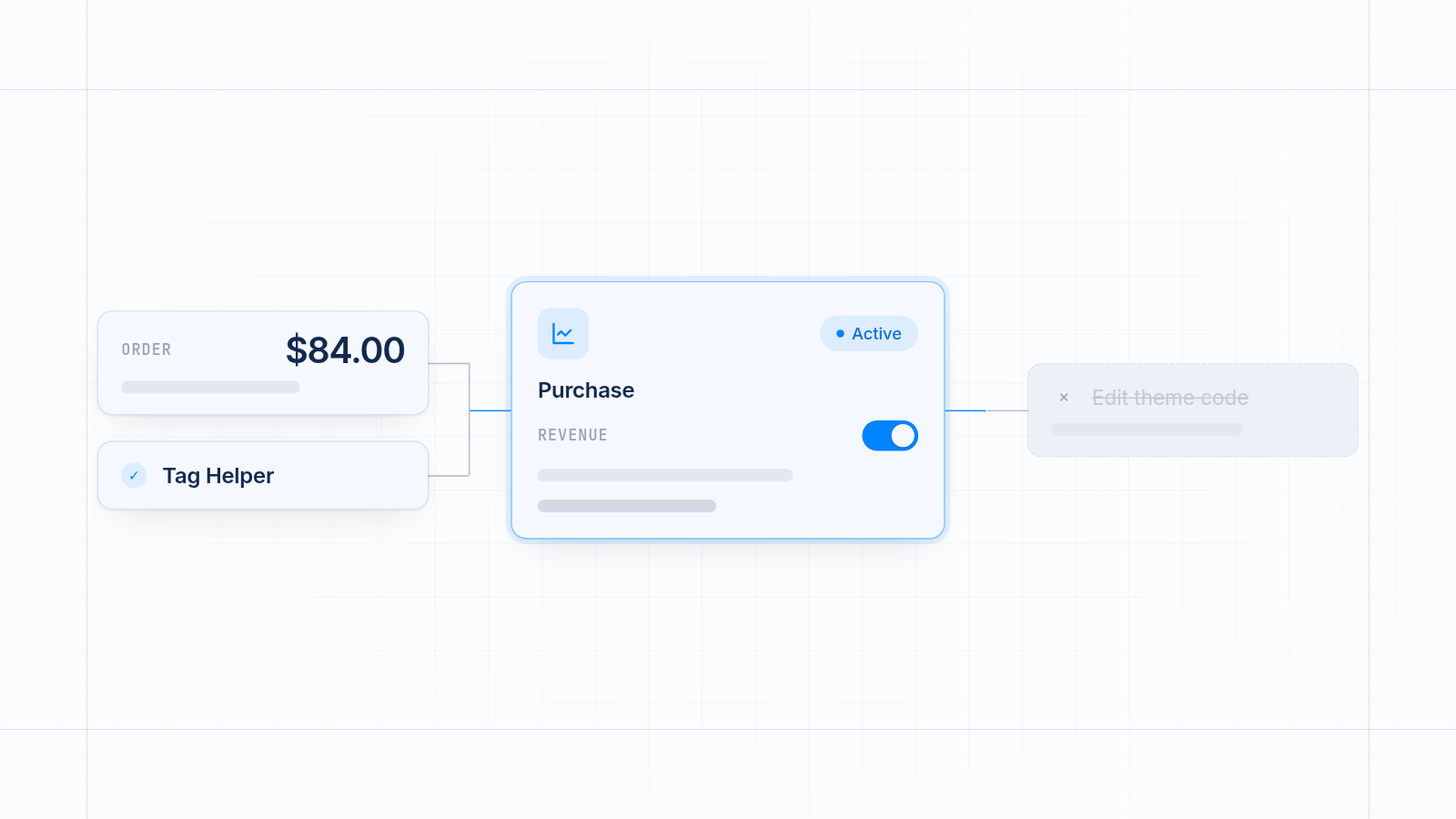
To add the Microsoft Ads UET tag to Shopify, create a UET tag in Microsoft Ads, install it on your store, set up a purchase conversion goal with revenue turned on, then confirm it fires with the UET Tag Helper. With MultiPixels you can do the install step with no code or tech team required. Revenue not showing at checkout is the most common problem, and it is fixable.
This guide covers each step, why revenue goes missing, and how the app compares with custom pixels and manual theme code.
Key takeaways
The UET tag is how Microsoft Ads sees visits and sales on your store. Without it, you pay for clicks and can't tell which ones led to orders.
A working setup has four parts: a UET tag, an install on Shopify, a purchase goal with a revenue value, and a check with the UET Tag Helper.
Revenue usually goes missing because the goal has no revenue value turned on, or the purchase event doesn't send the order total.
MultiPixels installs the tag with no code or tech team required, so you don't touch your theme.
Run only one UET install. Two installs can count one order twice.
What the UET tag is and why your store needs it
The UET tag, short for Universal Event Tracking, is a small piece of tracking that Microsoft Ads uses to see what visitors do on your store. It lets Microsoft connect an ad click on Bing to a sale.
If the tag is missing, you see clicks and costs but no sales. If it is half installed, you see some visits and few orders. If it fires but doesn't send the order total, you see sales with no revenue. All three waste ad spend. Good campaigns look weak, weak ones keep running, and Microsoft's automated bidding has little to learn from.
Fixing it takes less time than most people expect. Do it before you raise your budget.
Step 1: Create the UET tag in Microsoft Ads
Create the tag inside your Microsoft Ads account, then copy its tag ID.
- Log in to Microsoft Ads.
- Open the Conversions menu, or Tools in some layouts, and choose UET tag.
- Click Create UET tag and give it a clear name, such as "Shopify Store."
- Save it and copy the numeric tag ID.
One tag per store is enough. If you already have a tag from an earlier setup, reuse it. A second one splits your data across two tags.
Step 2: Add the UET tag to Shopify with MultiPixels
MultiPixels adds your UET tag to Shopify without code, so you never open your theme files. You paste the tag ID and the app does the rest. The Microsoft Ads pixel page has more detail on what it covers.
- Install MultiPixels from the Shopify App Store.
- Open the app and choose Microsoft Ads from the list of pixels.
- Paste the UET tag ID you copied.
- Save and turn the pixel on.
That's the install. There's no custom code to maintain, and your other pixels live in the same dashboard. If you also run Facebook, Instagram, TikTok, Snapchat, X or Pinterest ads, you manage them all in one place. For more, see our guide to running several ad pixels without editing theme code.
Before you save, check for an older UET install. Look for a tag pasted into your theme or a custom pixel from a past setup. Remove it so each page load fires the tag once.
Step 3: Set up a purchase conversion goal with a revenue value
A conversion goal tells Microsoft Ads which action counts as a sale. For most stores that's a purchase, and it needs a revenue value so your reports show real money, not just a count.
- In Microsoft Ads, go to Conversions and then Conversion goals.
- Click Create and choose Website.
- Pick a custom event goal.
- Set the event action to
purchaseand choose Purchase as the category. - Turn on revenue tracking and choose your store currency.
- Save the goal.
Choose a revenue value that changes with each order, not one fixed number. A fixed value makes every sale look the same. You can't judge return on ad spend from that, and bidding learns less from it.
Wait a little after saving. Microsoft Ads can take time to mark the goal as active.
Step 4: Check it works with the UET Tag Helper
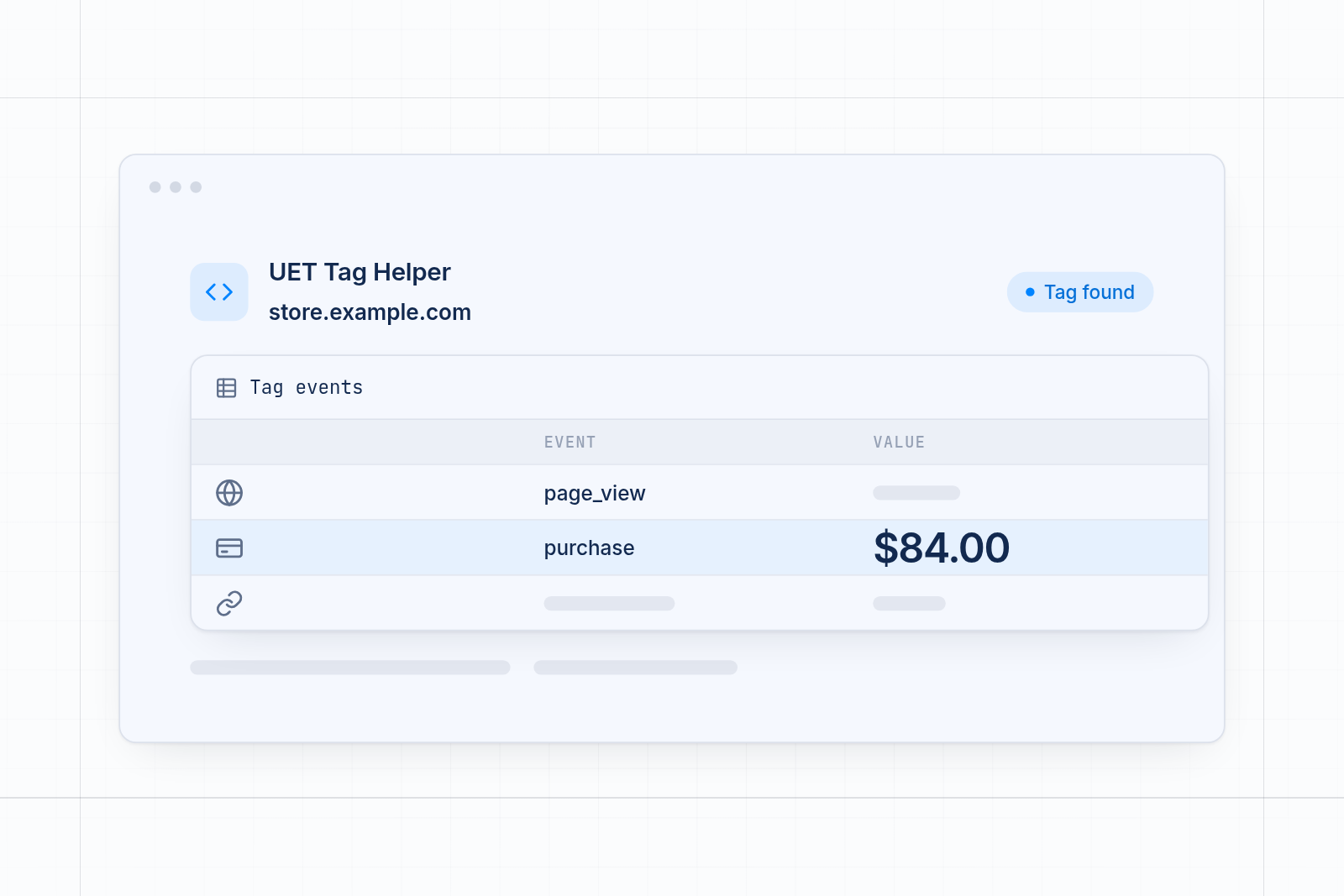
The UET Tag Helper is a free browser extension from Microsoft that shows whether your tag fires and what it sends. Use it before you spend more.
- Install the UET Tag Helper in Edge or Chrome.
- Open your store and click the extension.
- Look for your tag ID and a green status. A page view event should appear.
- Place a test order with a low-priced product or a test payment method.
- On the order confirmation page, open the Tag Helper again and look for a purchase event with a value.
Then check Microsoft Ads. The tag status can move from unverified to active after data arrives, and conversion reports may lag. One order in Shopify should equal one conversion in Microsoft Ads. If you see two, you probably have a duplicate install. If you see none after a fair wait, check the tag ID and the goal setup.
Small gaps between Microsoft Ads and Shopify Analytics are normal. Large ones deserve a closer look, and our guide to fixing a pixel and Shopify Analytics data mismatch walks through it.
Why revenue doesn't show at checkout
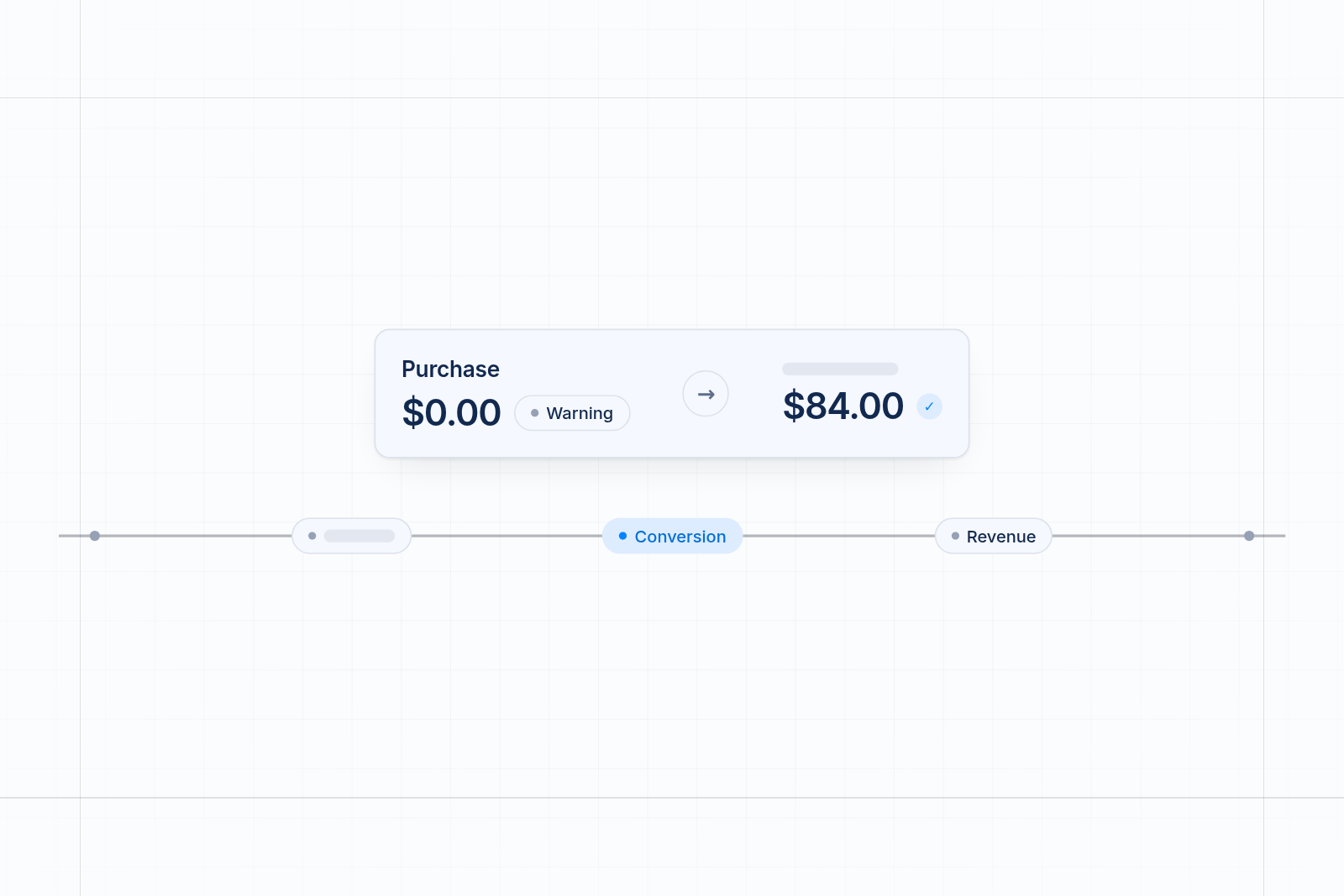
Revenue goes missing when the purchase event reaches Microsoft without the order total, or when the goal isn't set to read one. The sale is counted, but the dollar amount is blank or wrong.
The usual causes:
| Cause | What you see | What it costs you |
|---|---|---|
| Revenue tracking off in the goal | Sales counted, revenue blank | You can't judge return on ad spend |
| Fixed value in the goal | Every sale shows the same amount | Big and small orders look alike |
| Purchase event sent without the order total | Goal fires, value is zero | Bidding has less to learn from |
| Wrong event name | Goal never fires | Real sales go unseen |
| Duplicate installs | One order counted twice | Results look better than they are |
| Old checkout scripts | Nothing fires on the order page | Sales go missing entirely |
Shopify's checkout has moved to a newer system, so old advice about pasting code into checkout or the order status page may no longer work. If a guide tells you to do that, skip it.
To fix a revenue problem, work in this order. Open the goal and confirm revenue tracking is on with a variable value. Check the currency. Then place a test order and read the purchase event in the UET Tag Helper. If the value shows there, the goal is the issue. If it doesn't, the install is the issue.
Your options compared
You can add the UET tag through an app, a custom pixel, or manual theme code. They differ in time, risk and how easily problems stay hidden.
| Option | What it does | Time | Risk | Where it falls short |
|---|---|---|---|---|
| MultiPixels | Installs the UET tag from a dashboard with no code or tech team required | Minutes | Low, no theme edits | Paid after the 10-day free trial, plans from $9.99 a month |
| Shopify custom pixel | You paste Microsoft's code into Customer events | Longer, needs careful setup | Medium. Shopify calls it an advanced feature, and you own the code | Purchase and revenue events must be written correctly by you |
| Manual theme code | You edit theme files to add the tag to every page | Longest | Highest. A slip can break the theme | May miss checkout pages and breaks when the theme changes |
Time matters because every day with broken tracking is a day of spend without feedback. Risk matters because a theme edit can break your storefront and cost you sales. Custom code also needs someone to keep it working. If you have no developer, that someone is you.
A custom pixel is a fair choice if you're comfortable with code and want full control. Manual theme edits are the weakest option for most stores. MultiPixels is the quickest and safest, and it keeps your other ad pixels in one place. It focuses on installing and managing pixels, so you still create the tag and the conversion goal inside Microsoft Ads.
Keep one UET install and review it
Run a single UET install, and review it whenever you change anything. Each time you add an app, change your theme or switch on a consent banner, run a test order and read the result in the UET Tag Helper.
Consent settings matter too. If your store serves visitors in the UK or EU, Microsoft asks that consent be passed correctly, and visitors who decline tracking won't show up in your reports. Expect Shopify to show more orders than Microsoft Ads in that case. The same thing happens when a cookie banner blocks Facebook and TikTok pixels.
Start tracking Microsoft Ads sales
A missing or half-installed UET tag leaves you paying for clicks you can't connect to orders. Install the MultiPixels app from Shopify and start the 10-day free trial to get your UET tag running with no code.