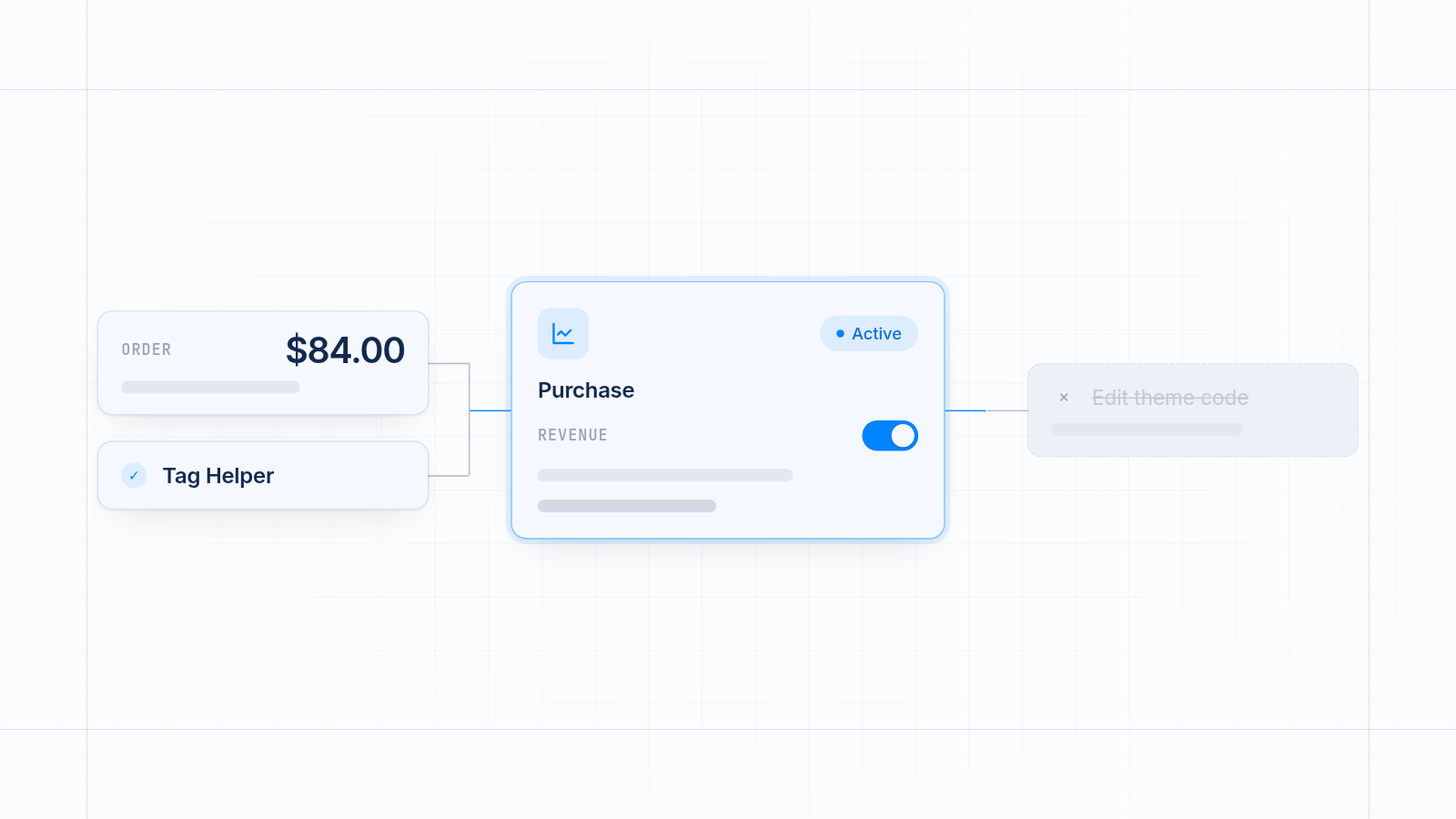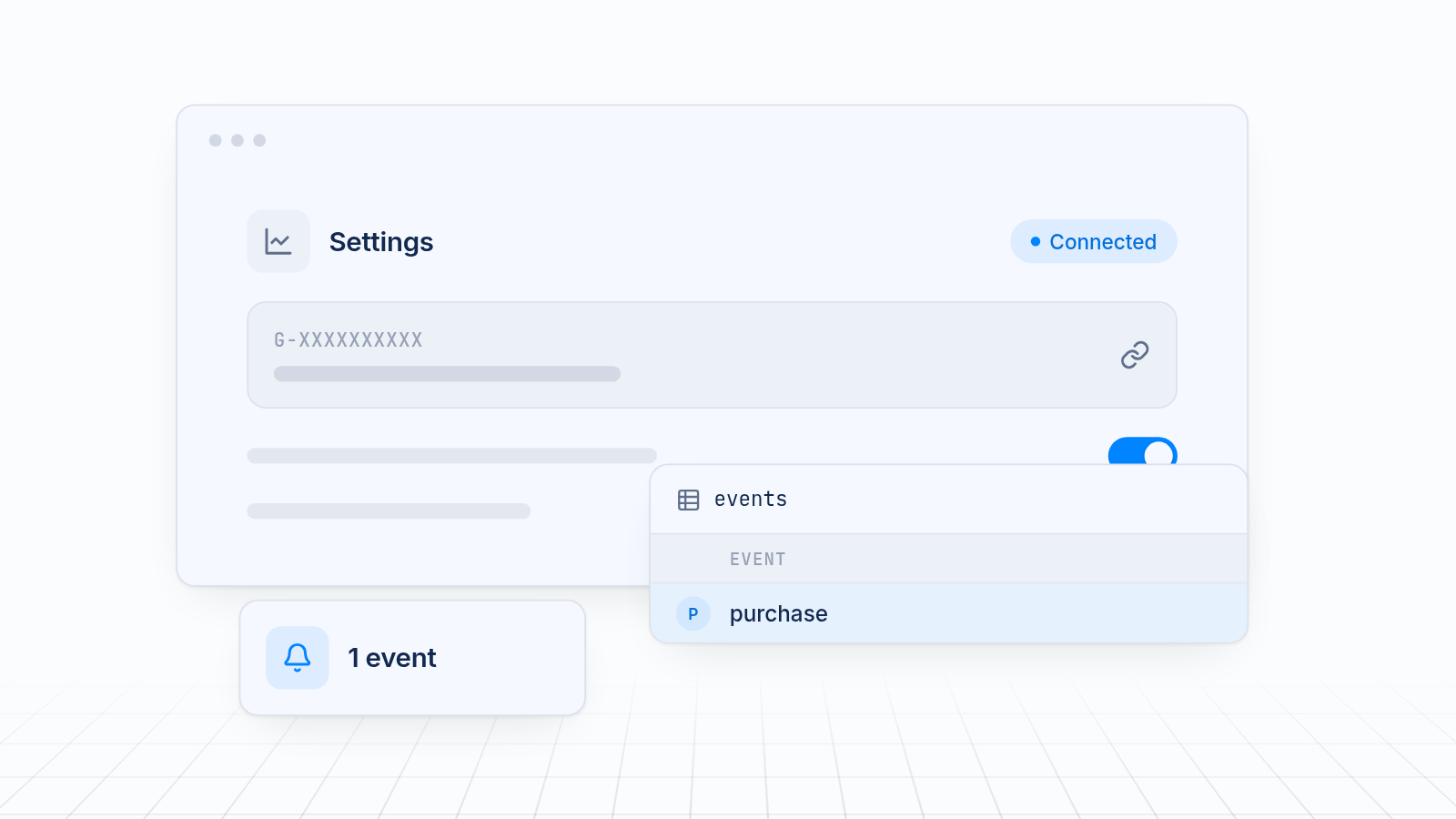
To add Google Analytics 4 to Shopify without coding, create a GA4 web data stream, copy its Measurement ID, and paste it into MultiPixels. No code or tech team required. Then place a test order and check that exactly one purchase shows up in GA4 Realtime and DebugView. If purchases are missing or counted twice, the cause is usually a duplicate tag, a checkout page that isn't firing the event, or a consent setting that holds tracking back.
This guide covers the install, a troubleshooting checklist, and how this route compares with Shopify's Google & YouTube channel.
Key takeaways
Missing or doubled purchases in GA4 mean wasted ad spend. You can't tell which campaigns earn money, so you may cut winners and fund losers.
MultiPixels installs GA4 with just the Measurement ID. No code or tech team required.
Most purchase problems come from duplicate tags, a purchase event that doesn't fire on checkout or the thank-you page, or consent settings.
Confirm the fix with a test order in GA4 Realtime and DebugView.
Shopify's Google & YouTube channel handles GA4 well, but it covers Google only. Stores running several ad platforms need more.
Adding Google Analytics 4 to Shopify without coding
Create a web data stream in Google Analytics, then give its Measurement ID to an app that installs the tag for you. You never touch your theme files.
The Measurement ID starts with G-. It tells GA4 which property should receive your store's data. Once your store sends events to that ID, GA4 can report on views, carts, checkouts and purchases.
Without this data, you see ad clicks and costs but not which ads led to sales. That's where budget gets wasted.
Why purchases go missing or show up twice in GA4
Either the tag isn't firing at the right moment, or it fires more than once. Both lead to bad decisions.
- Missing purchases. Real sales never reach GA4. Campaigns that work look weak, so you may pause them.
- Duplicate purchases. One order counts twice. Revenue looks higher than it is, so you may spend more on campaigns that aren't as strong as they appear.
Either way, you're steering ad spend with numbers that don't match your Shopify orders.
Step by step: install GA4 with MultiPixels
It takes four steps and needs only the Measurement ID.
Step 1: Create a GA4 property and web data stream
Sign in to Google Analytics and create a GA4 property for your store. Then add a Web data stream and enter your store's URL. Google gives the stream a Measurement ID that starts with G-.
Step 2: Copy the Measurement ID
Open the data stream details and copy the Measurement ID. Keep it handy for the next step. Check it character by character, because one wrong letter sends your data nowhere.
Step 3: Install MultiPixels from Shopify
Install the MultiPixels app from the Shopify App Store. Your 10-day free trial starts at install. Plans cost $9.99, $19.99 or $39.99 a month after the trial.
Step 4: Add your GA4 pixel
Open the app and choose the Google Analytics pixel. Paste in the Measurement ID and save. MultiPixels takes care of the rest, with no code or tech team required.
Before you test, remove any older GA4 tag from your theme or any other app. Two installs sending to the same ID is the most common cause of double-counted orders.
Troubleshooting checklist for missing GA4 purchases
Work through six checks in order: the purchase event, duplicate tags, missing transactions, consent settings, a test in DebugView, and the right Shopify number to compare against.
1. Confirm the purchase event fires on checkout and the thank-you page
The purchase event should fire once, when the order is completed and the thank-you page loads. A tag that only loads on regular store pages can miss checkout entirely.
Place a test order and watch whether a purchase arrives. If views and add-to-cart events show up but purchase doesn't, the signal is being lost at checkout.
2. Look for duplicate transactions
Duplicates usually come from one of these:
- GA4 installed through more than one app
- An old tag left in the theme
- A tag added through Google Tag Manager on top of another install
- A customer refreshing the thank-you page
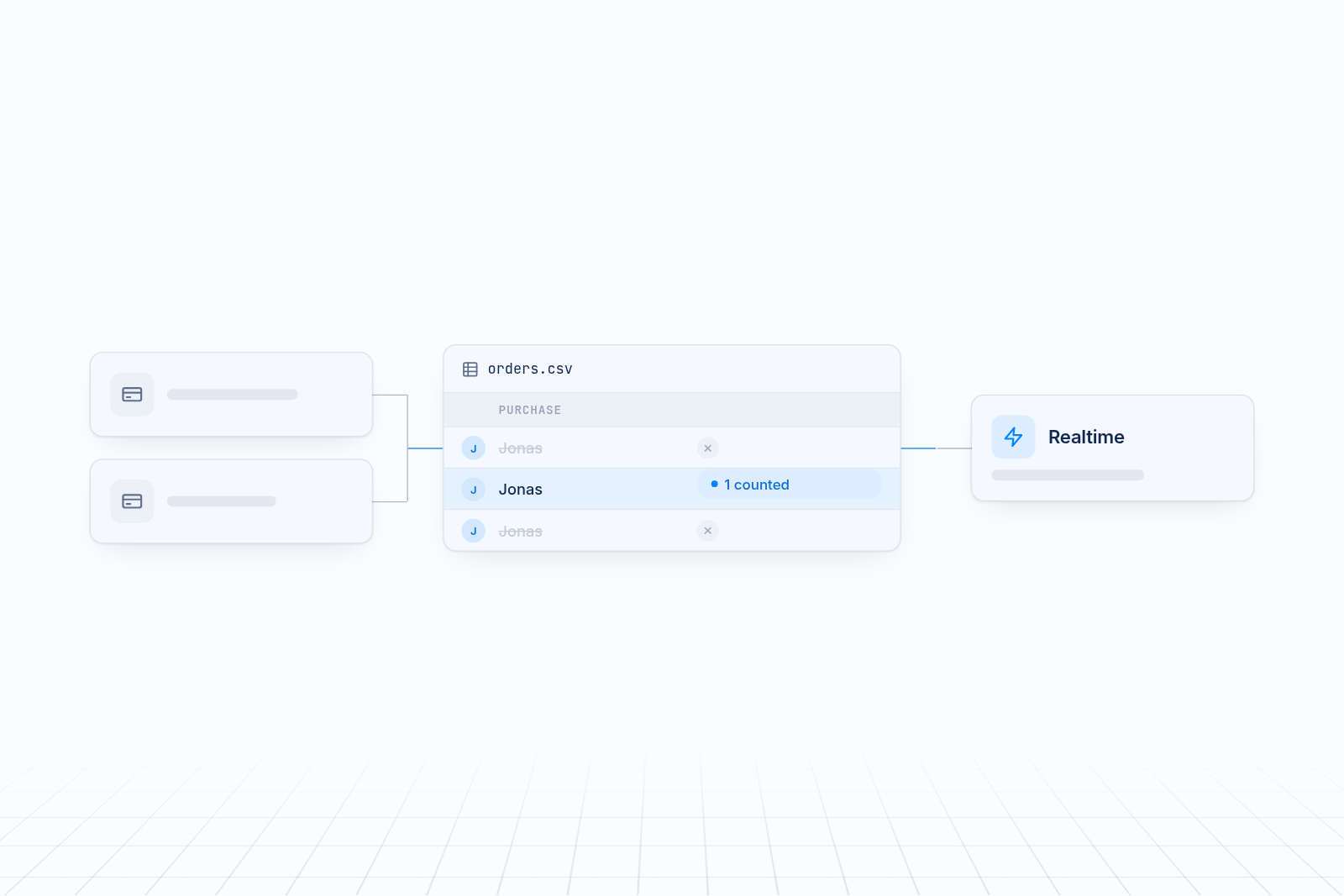
Keep one install only. Then place one test order and confirm one purchase appears.
3. Look for missing transactions
Compare the orders in Shopify with the purchases in GA4 for the same dates. A few missing orders are normal, since ad blockers and shoppers who close the tab early can cause gaps. A large gap points to a setup problem.
Also check payment methods one at a time. Shoppers who leave your store to pay somewhere else may not land back on the thank-you page, which can hide their purchase from GA4. Cash on delivery orders are a common example.
4. Check your consent settings
Consent settings can hold tracking back. In regions that require consent, visitors who decline or ignore the banner may send no events. If purchases dropped right after you turned on a cookie banner, consent is a likely cause. Our post on how a consent banner can block pixels covers the same problem for other platforms.
Open Settings > Customer privacy in Shopify admin and review the rules for each region. Menu names change from time to time, so follow the closest match on your screen. Test once with cookies accepted to see whether purchases arrive.
5. Verify in GA4 Realtime and DebugView
Realtime shows activity as it happens. DebugView shows each event a test device sends.
- Open your store in a separate browser tab.
- In GA4, go to Reports > Realtime and look for an active user.
- Open Admin > DebugView and place a test order.
- Look for one purchase event, with a transaction ID, a value and a currency.
Standard GA4 reports can take a day or more to fill in. Use Realtime and DebugView for testing, and check the standard reports later.
6. Compare against the right Shopify number
Compare GA4 purchases with Shopify online store orders over the same dates, in the same time zone and currency. The two won't match exactly, but they should be close. If the gap is big, see the notes on consent and duplicates above. For a wider look at why numbers differ, read how to fix a pixel and Shopify analytics data mismatch.
How MultiPixels compares with Shopify's Google & YouTube channel
Shopify's Google & YouTube channel connects GA4 without code, and it works for stores that only need Google. MultiPixels does the same job with a Measurement ID, and also runs your other ad pixels from one place.
| Option | What it does | Where it falls short |
|---|---|---|
| Shopify's Google & YouTube channel | Connects a GA4 property and sends standard store events without code | Covers Google only. You set up Facebook, Instagram, TikTok, Snapchat, X and Pinterest separately, so there is no single view of your pixels |
| Manual code or custom pixels | Full control over what is sent | Needs technical skill, and mistakes cause missing or duplicate purchases |
| MultiPixels | Installs GA4 from the Measurement ID and manages Facebook, Instagram, TikTok, Snapchat, X and Pinterest pixels in one dashboard. Supports a backup pixel and custom and lookalike audiences. No code or tech team required | It is a paid app after the 10-day free trial, with plans at $9.99, $19.99 or $39.99 a month |
This matters when you run ads on several platforms. Each one needs its own pixel, and each pixel can drift out of line with Shopify. One dashboard makes duplicates and gaps easier to spot. If you're weighing options, see how a pixel app compares with Google Tag Manager and Shopify's built-in Facebook channel.
A simple routine to keep purchases accurate
Check your numbers on a schedule, and again after any change. That catches problems before they cost you budget.
- After setup: place a test order and confirm one purchase in DebugView.
- After adding an app or banner: repeat the test. New apps and consent banners are common causes of change.
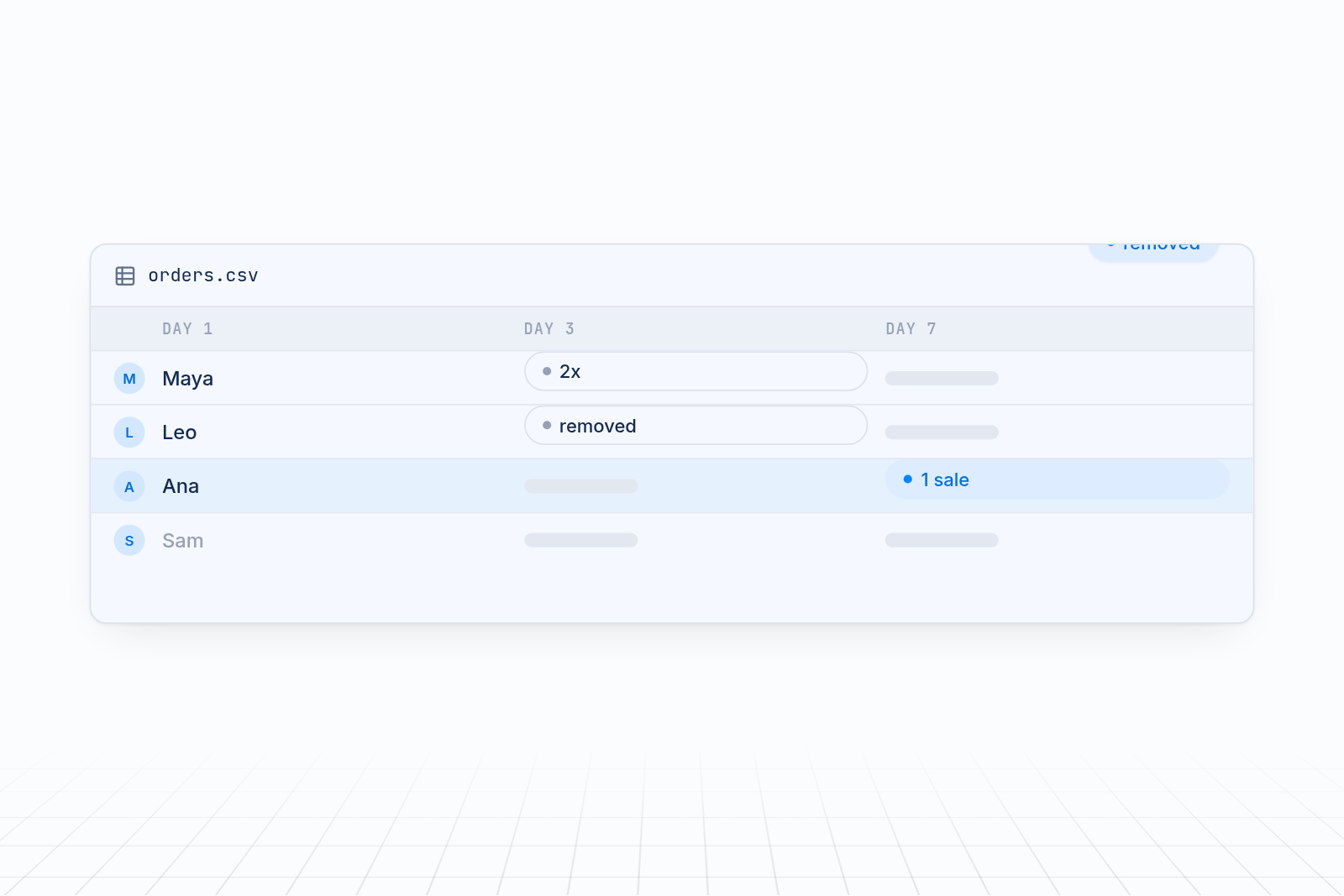
- Weekly: compare GA4 purchases with Shopify orders for the same dates.
Small gaps are normal. A gap that suddenly widens points to something that changed.
Install MultiPixels and start your free trial
Accurate purchase data helps you put ad budget where it earns sales. Install the MultiPixels app from Shopify and start the 10-day free trial to add GA4 with just your Measurement ID. Then check your first test order in GA4 Realtime.