Why your Facebook pixel isn't working: how to fix it comes down to these checks, in order: duplicate or missing pixels, the Purchase event on the order status page, consent and ad blockers, domain verification, and a test in Events Manager. If your Facebook ads aren't tracking purchases on Shopify, one of these is usually the cause. Most fixes need no code or tech team. If the pixel still underreports after that, move to server-side tracking.
A broken pixel wastes ad spend. Meta can't see which ads lead to sales, so it can't find more buyers like the ones you already have.
Key takeaways
- Run the checks in order. Start with duplicate or missing pixels, then the Purchase event, then consent and ad blockers, then domain verification, then testing.
- Use one setup only. Shopify's Facebook sales channel or a single app, not both plus old theme code.
- Test with a real order in Events Manager before you change ad budgets.
- Set data sharing to Maximum so Meta gets both browser and server events.
- If browser blockers and iOS limits keep hiding sales, add server-side tracking.
When your Facebook Pixel isn’t working properly on Shopify, you might notice things like:
- No purchases being tracked.
- Missing or incomplete data in Events Manager.
- Duplicate events that throw off your conversions.
- Nothing showing up at all.
You're not alone. Many Shopify store owners run into a pixel that doesn't track events correctly, especially after theme changes, app installations, or Facebook API updates.
A pixel that misfires hurts your ad performance and budget. This guide covers the most common reasons your pixel might not be tracking, from misfires on the purchase page to conflicting apps or missing setup steps. You'll also learn how to test whether your pixel fires the way it should, using Facebook's built-in tools, and how to avoid problems as your store grows and changes.
Source: Unsplash CC0
Why Facebook Pixel Might Not Work Properly on Shopify
A Facebook pixel usually stops working on Shopify because of a setup error, an app conflict, or a change to your store. Here are the main causes.
1. Pixel Not Installed Correctly
If the Pixel was added manually or through an outdated method, it might not track properly. Sometimes the code sits in the wrong section of your Shopify theme or gets duplicated by accident. That leads to misfiring events or no tracking at all.
If you haven’t set up your Pixel yet, the best way to create a Facebook Pixel in Shopify is the Facebook Sales Channel app. It walks you through each step and connects everything properly from the start.
2. Facebook Sales Channel Not Connected
The simplest way to install and manage your Pixel is Shopify’s Facebook Sales Channel. If it isn't connected properly, or permissions are missing, your Pixel may not connect to Shopify.
3. Conflicting Apps or Custom Code
Some Shopify apps inject their own tracking scripts, which can interfere with your Pixel. Custom-coded scripts can also cause duplicate or missing events, especially on the checkout or thank you pages.
4. Data Sharing Settings Are Too Restrictive
Shopify lets you choose how much customer data gets shared with Facebook. A limited option could keep your Pixel from tracking purchases accurately.
5. Theme or Checkout Customizations
If you’ve customized your Shopify theme or checkout flow, the Pixel may not fire where it should. A modified thank you page, for example, can break the connection that triggers a “Purchase” event.
When your Pixel is not tracking purchases on Shopify, the cause is usually a setup issue, an app conflict, or a change to your store’s structure.
How to Check If Your Facebook Pixel Is Tracking Correctly
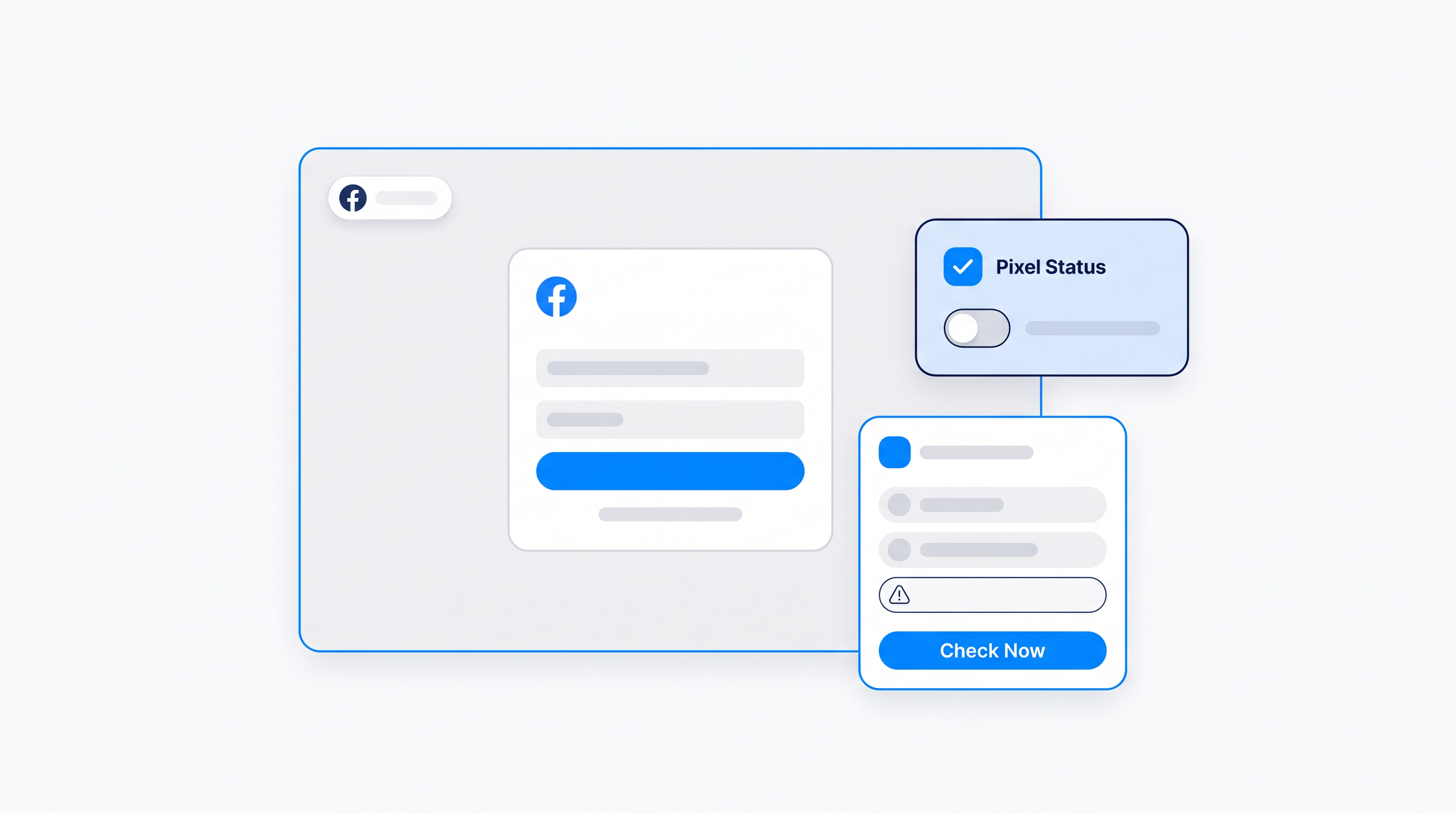
You can check your Pixel with the Meta Pixel Helper extension and the Test Events tool in Events Manager. Do this before you fix anything, because a Pixel might look installed but not fire on key events like purchases or add to cart actions.
1. Use the Facebook Pixel Helper Extension
Use the free Meta Pixel Helper to see what's working and what's not.
Once it’s active, visit your Shopify storefront and go through a typical customer flow: view a product, add it to the cart, and check out. The extension will tell you:
- Which events are firing.
- Whether your Pixel is found on the page.
- Any errors or warnings.
If nothing shows up, or the events look incomplete, your Pixel is not working the way it should.
2. Use Facebook’s Event Testing Tool
In Facebook Events Manager, open Test Events. Enter your Shopify store’s URL and click through your site. You get real-time feedback on which events fire.
If purchases aren't tracking, place a full test order to see whether the “Purchase” event fires.
3. Check for Multiple Pixels
In the Pixel Helper or Events Manager, look for duplicate Pixels firing at the same time. This usually happens if:
- You’ve manually added a Pixel to your theme code.
- An app added another Pixel.
- You previously installed it outside the Facebook Sales Channel.
More than one Pixel can cause duplicate events or missed conversions. If you run more than one on purpose, see how to add multiple Facebook Pixels in Shopify without double counting.
4. Look for Warning Messages in Events Manager
Go to Events Manager and select your Pixel. If Facebook detects problems, you’ll often see warnings like “Purchase event not received” or “Multiple events detected.” Both mean your setup is not working correctly.
Common Issues: Facebook Pixel Not Tracking Purchases on Shopify
Even when your Pixel appears installed correctly, the most common reasons it fails to track purchases are a silent purchase page, duplicate events, partial tracking, missing data, consent settings, and an unverified domain.
Pixel not firing on the purchase confirmation page
A customer completes checkout, but the Pixel doesn’t record the “Purchase” event. If purchases aren't tracked, this is often the cause.
This usually happens when:
- The Pixel is not properly installed on the thank you page.
- Checkout customization has broken the event script.
- Shopify’s checkout settings are misconfigured or limited.
Make sure you're using Shopify’s Facebook Sales Channel and that your Pixel is connected through it, not just added manually via theme code.
Duplicate purchase events being triggered
If Ads Manager reports twice as many purchases as you made, the Pixel may be firing duplicate purchase events.
This typically occurs when:
- A Pixel is installed via both the Facebook Sales Channel and custom code.
- Apps like landing page builders or conversion trackers add their own event scripts.
- The same purchase page reloads and triggers the Pixel again.
Duplicate events skew your data and lead to poor ad optimization, so remove any extra Pixels.
Pixel tracking some but not all events
Your Pixel might track views and adds to cart but miss checkouts or purchases. This partial tracking often points to:
- Incomplete data sharing settings.
- Theme or app conflicts blocking certain events.
- Custom funnels or third-party checkout tools bypassing the standard Shopify flow.
This makes it harder to retarget users and optimize for real conversions.
Pixel active but no data visible in events manager
If your Pixel looks connected in Shopify but shows zero events in Events Manager, it’s likely not firing at all.
Common causes include:
- Incorrect Facebook Business Manager permissions.
- A broken or expired Pixel connection.
- Issues during setup inside the Facebook Sales Channel.
- A different Pixel ID selected in Shopify than the one you're checking in Events Manager.
With no data, Facebook has no idea what’s happening on your store.
Consent settings and ad blockers hide some buyers
Consent banners and ad blockers can stop the Purchase event from firing for some visitors. If your store asks for cookie consent, visitors who decline or ignore the banner may not trigger a purchase event. Ad blockers and browser limits on iOS can do the same. Test with the banner accepted and blockers off. If the numbers improve, blocked browsers are costing you reported sales.
Domain not verified
Meta can limit how it counts events from a domain that isn't verified. Verify your primary Shopify domain in Meta Business settings and assign your web events to it.
How to Fix Facebook Pixel Not Working on Shopify
Most Facebook pixel problems on Shopify can be fixed without touching code, using the steps below.
Reconnect Facebook Sales Channel in Shopify
Open your Shopify admin and go to Settings > Apps and Sales Channels. Click on Facebook and review your connection. If it looks outdated or broken, remove and reinstall the Facebook Sales Channel.
Reconnecting links your Pixel to your Business Manager and Shopify store, which fixes most connection problems.
Remove duplicate Pixels installed via code
If you've added a Pixel manually to your theme or through a third-party app, it might conflict with Shopify’s built-in integration. Go to Online Store > Themes > Edit Code, and search for fbq or facebook. If you see Pixel code, remove it and rely on the Facebook Sales Channel.
This helps eliminate duplicate purchase events and other tracking glitches.
Enable “Maximum” data sharing in Shopify settings
In the Facebook Sales Channel settings, find Data Sharing Settings and set it to Maximum. Facebook can then collect more complete event data using both browser and server-side tracking (via the Conversions API).
If purchases aren't tracking, this setting matters.
Clear Pixel cache and test fresh purchase events
Your browser may hold old settings. Clear your cache or use an incognito window to simulate a clean purchase. Then use Test Events in Events Manager to see if the “Purchase” event fires.
Verify Shopify checkout and thank you page integration
If you’re using third-party checkout tools or custom thank you pages, make sure they work with the Facebook Pixel. Shopify’s native checkout is supported, but others may not trigger events correctly. Code that used to run on the thank you page through theme edits or a tag manager may no longer run after a checkout upgrade, so confirm tracking runs through the Facebook sales channel or Shopify's customer events settings.
Use the Pixel’s Event Testing Tool for real-time checks
Facebook’s Event Testing Tool is the fastest way to confirm a fix. Visit your site, simulate actions, and see if they’re tracked right away.
Know when to move to server-side tracking
Move to server-side tracking when blockers and iOS limits keep hiding sales after you finish the checks above. Meta's Conversions API sends purchases from the server, so they aren't lost when a browser blocks the Pixel. If Events Manager shows purchases but Ads Manager reports fewer, or your sales keep outrunning your reported conversions, this is the next step.
Best Practices to Avoid Facebook Pixel Issues on Shopify
To avoid Facebook pixel issues on Shopify, use one official setup, limit custom code, keep data sharing at Maximum, and test after every change.
-
Stick to Shopify’s official Facebook integration: Use the Facebook Sales Channel instead of manually adding Pixel code or relying on third-party apps.
-
Limit custom code and checkout changes: Avoid unnecessary script edits or checkout modifications that can block or break event tracking.
-
Keep data sharing set to “Maximum”: Facebook then uses both browser and server-side tracking, which improves accuracy even when cookies are blocked.
-
Audit your setup regularly: Test your Pixel any time you update your theme, install new apps, or change your store’s settings.
-
Avoid duplicate Pixels: Make sure only one Facebook Pixel is active to prevent tracking errors, duplicate events, or missing data.
These habits keep your ads effective and your data clean. For a no-code way to set up and monitor your Facebook Pixel on Shopify, try MultiPixels. Plans cost $9.99, $19.99 or $39.99 a month after a 10-day free trial. You can install the MultiPixels app from Shopify and start the 10-day free trial today.