Yes, you can run Snapchat, X and Pinterest pixels on Shopify without slowing site speed. Shopify's customer events load pixels in a sandbox, away from your theme, so they do not block what shoppers see. Heavy apps, oversized images and leftover pixel code in the theme are what slow a store. This post covers how it works, how to measure your speed before and after, and how to install all three platforms with no code or tech team required.
Key takeaways
Pixels installed through Shopify's customer events run in a sandbox, separate from your theme.
Heavy apps, oversized images and duplicate pixel code cause most slowdowns, not the pixels themselves.
Test with a free speed tool before and after, and change one thing at a time.
Remove old pixel code from your theme before you install anything new.
MultiPixels installs Snapchat, X and Pinterest from one dashboard, with plans from $9.99 a month after a 10-day free trial.
Do ad pixels slow down Shopify?
Pixels can slow a store if they are pasted into your theme. Pixels installed through Shopify's customer events add very little to page load. Every script is still one more thing for a browser to handle, so no setup is free. How you install them decides most of the impact.
Plenty of store owners worry that three more pixels will cost them conversions. A slow page loses shoppers before the ad matters, and that is wasted ad spend. Install pixels the way Shopify intends, and check your speed so you know the result.
How Shopify's sandboxed customer events work
Shopify's customer events load pixels in a protected, isolated environment instead of inside your theme. You can see them in your Shopify admin under Settings > Customer events. It lists every pixel that listens to what shoppers do on your store.
There are two kinds:
- App pixels come from an app or sales channel. They use Shopify's supported Web Pixels API and run in a strict sandbox.
- Custom pixels are code you paste in yourself. They also run in a sandbox. Our guide to custom pixels on Shopify explains how they work.
Because the pixel sits away from your theme, it does not compete with your page styling and main content. Shoppers see the page first. The pixel gets page views, product views, add to cart, checkout and purchase from Shopify and passes them to the ad platform.
This also covers checkout, which theme code cannot reach. Pixels that live only in your theme report fewer purchases than Shopify recorded. Your ad platform then learns from thin data, and you pay for clicks it cannot learn from.
What really slows a Shopify store
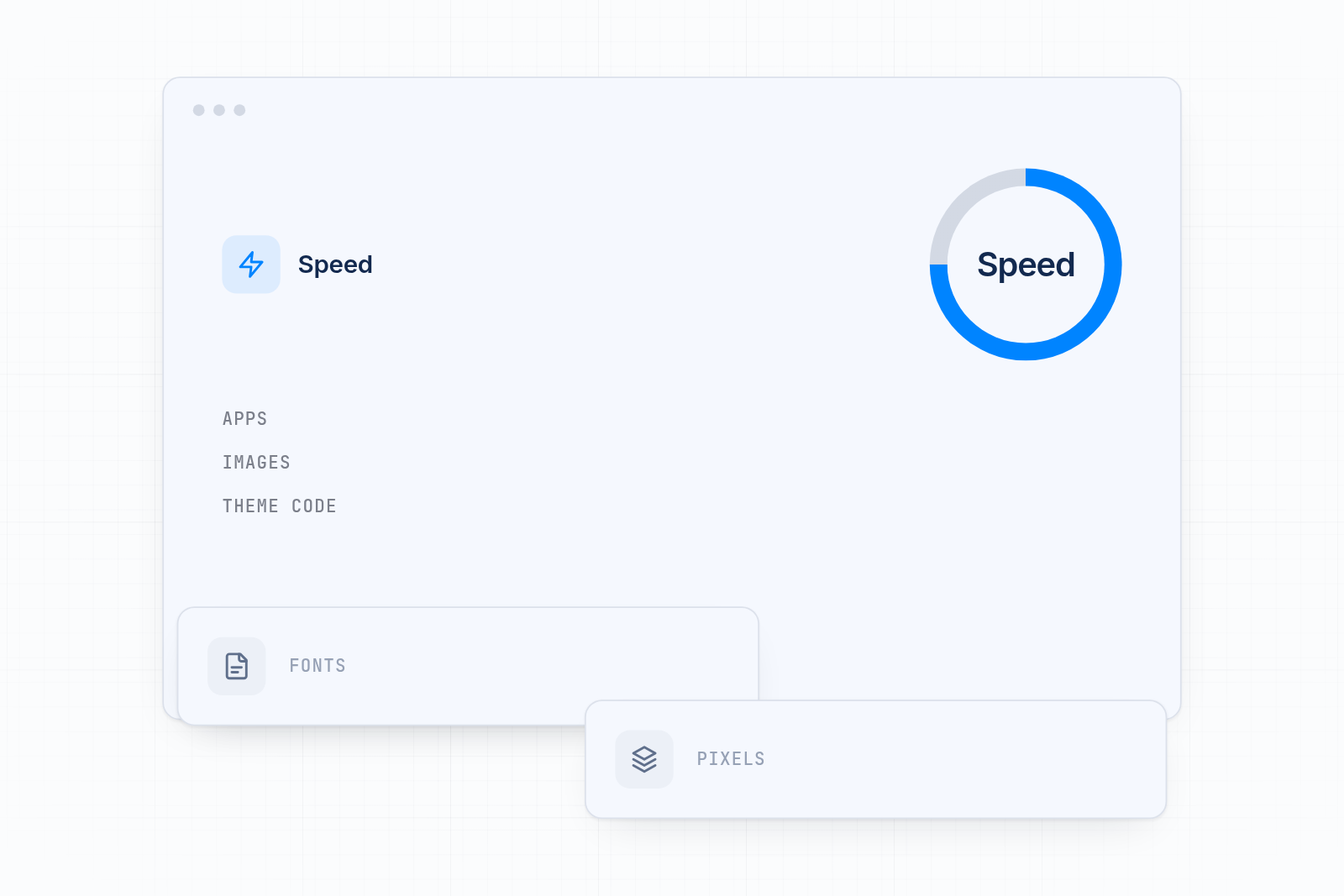
Heavy apps, oversized images and duplicate or leftover pixel code do most of the damage. Pixels get blamed because they are easy to spot, but the bigger causes are often elsewhere.
Heavy apps
Every app that adds scripts to your storefront adds weight. Chat widgets, popups, review tools and tag managers can each load their own files on every page. Review your app list and remove anything you no longer use. Uninstalling an app does not always remove its code, so check your theme afterward.
Oversized images
Large photos are a common reason pages feel slow, especially on phones. Resize images to the size they display, and compress them before you upload. Product pages and the home page matter most.
Duplicate or leftover pixel code in the theme
Old pixel code in theme.liquid or in theme snippets still loads on every page. If you install the same pixel again through an app, it fires twice. That adds requests, inflates your numbers and sends budget the wrong way. Remove old code before you add a new install. Pinterest asks the same if you added its tag by hand before using its Shopify app.
Too many separate pixel apps
Three apps for three platforms means three setups to maintain and three sets of files to load. One app that handles all three keeps this simpler.
How to measure the impact before and after
Run a free speed test before you change anything, then run it again after each change. You get proof of what the pixels cost, if anything, instead of a guess.
A simple checklist
- Pick three pages to test: your home page, a top product page and a collection page.
- Run each page through a free speed test such as Google's PageSpeed Insights. Test the mobile result, since most shoppers browse on phones.
- Write down the scores and the load times.
- Go to Settings > Customer events and note which pixels are already listed.
- Search your theme for old pixel code and remove any pixel you plan to run through an app.
- Install your pixels, then run the same three tests again.
- Compare. Small differences between runs are normal, so test twice before you act on a change.
- Change one thing at a time. If speed drops, you will know which change caused it.
Also place a test order and check each platform's events tool. Page views, add to cart, checkout and purchase should each fire once. A speed gain means little if events are missing or doubled.
Your options for installing the three pixels
You can use each platform's own app, paste custom pixels yourself, or use one pixel app. All three can run in Shopify's sandbox. They differ in setup effort and upkeep.
| Option | What it does | When it is enough | Where it falls short |
|---|---|---|---|
| Snapchat's Shopify app | Connects your Snap Pixel through Shopify | Snapchat is your only platform | Covers Snapchat only |
| Pinterest's Shopify app | Connects your Pinterest tag through Shopify | Pinterest is your only platform | Covers Pinterest only, and you must remove any tag added by hand |
| X pixel (custom pixel) | You paste X's code into Customer events | You are comfortable with code | You write, test and maintain it |
| MultiPixels | Installs and manages Facebook, Instagram, TikTok, Snapchat, X and Pinterest pixels in one dashboard, with a backup pixel option | Several platforms, no code or tech team required | It is a paid app after the 10-day free trial |
If you run one platform, its own app is a sensible start. With two or more, one app saves setup time and gives you one place to see what is installed. You can see the platforms MultiPixels connects on the integrations page.
How to install all three with MultiPixels
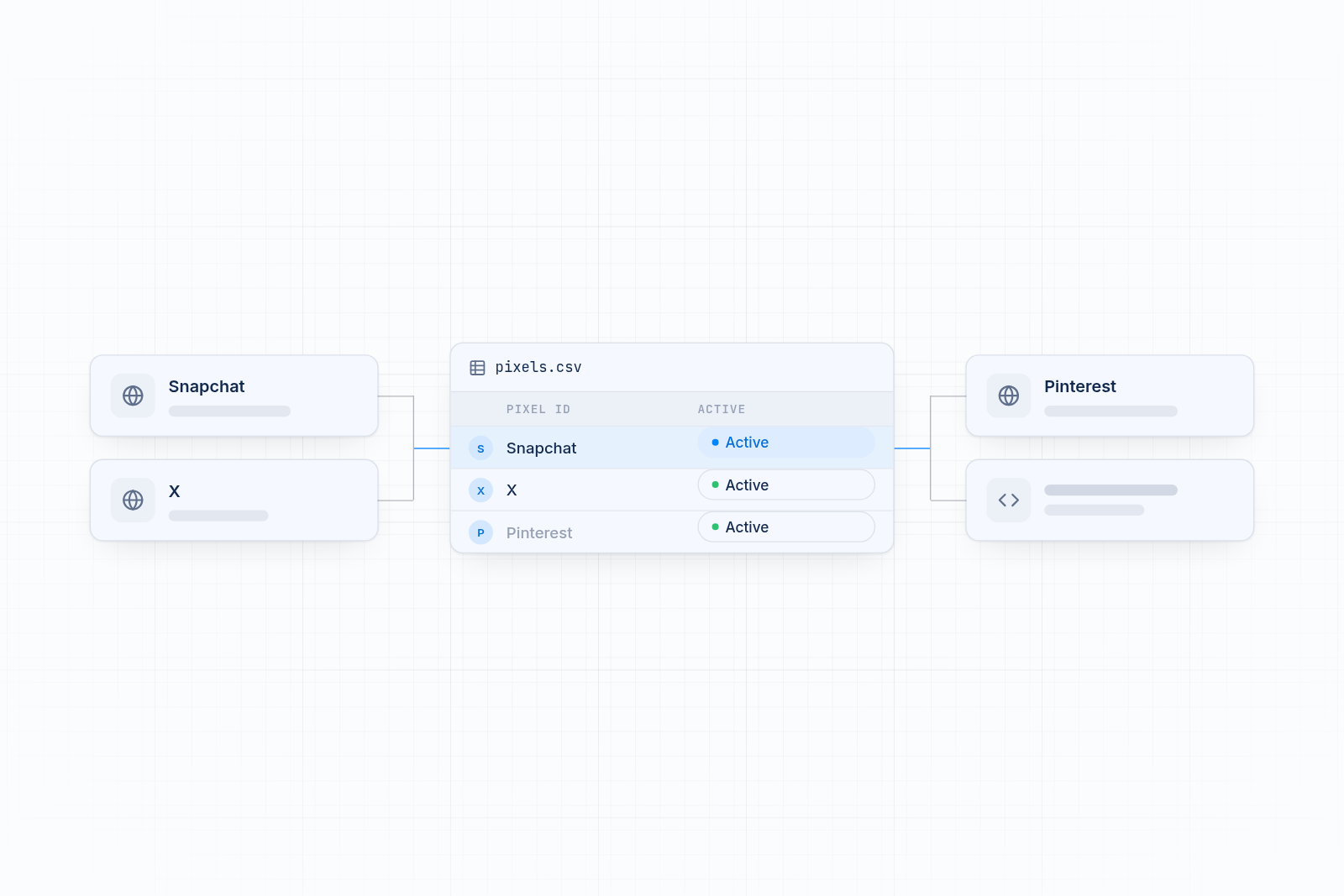
Setup takes a few minutes and needs no code. MultiPixels registers each pixel through Shopify's customer events for you, so nothing goes into your theme.
1. Clear out old pixel code
Go to Settings > Customer events and note what is listed. Then check your theme for old pixel code and remove any pixel you plan to run through MultiPixels. Two installs of the same pixel double your counts.
2. Run your baseline speed test
Test your three pages and write down the scores, as in the checklist above.
3. Install the app
Open MultiPixels in the Shopify App Store and click install. Approve the permissions. Your 10-day free trial starts, and plans are $9.99, $19.99 or $39.99 a month after that.
4. Add your Snapchat, X and Pinterest pixels
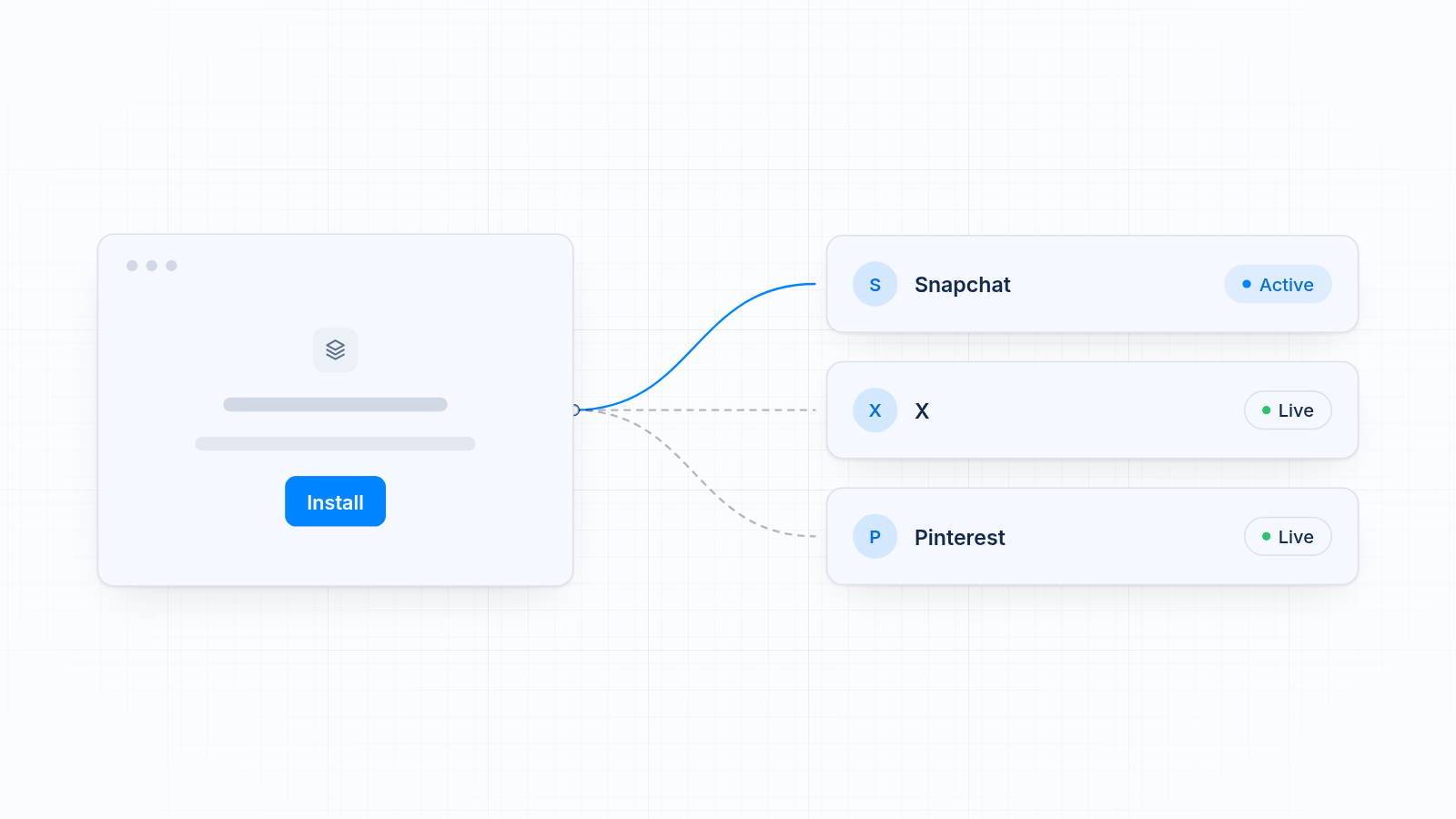
In the dashboard, choose a platform and paste your pixel ID from that platform's events tool. Save it. Repeat for the other two. Each platform gets its own row, so you can see what is on at a glance.
5. Test again
Run your speed tests a second time. Then place a test order and confirm each platform receives page views, add to cart, checkout and purchase once each.
What to do if your site still feels slow
If speed drops after you add pixels, look for duplicates first, then for other heavy items. Turn off one pixel at a time to see whether any of them is the cause. In most stores the cause is an old app, a large image or leftover code.
Some difference between your pixel data and Shopify Analytics is normal, because pixels run in the browser and can be blocked. A sudden or large gap points to a problem, and duplicate installs are the usual cause.
Track sales without paying for it in speed
You can track Snapchat, X and Pinterest sales without a slower store, as long as pixels load through customer events and old code is gone. Install the MultiPixels app from Shopify and start your 10-day free trial to run all three from one dashboard.