To track ChatGPT ads conversions on Shopify, connect an OpenAI pixel to your store and send it five events: page view, product view, add to cart, checkout started and purchase. You can use OpenAI's own Shopify app, a third-party pixel app, or a custom pixel you set up by hand. Then place a test order and check that the events show up once and match your Shopify orders. This post covers each route, compares the apps, and shows how MultiPixels fits, with no code or tech team required.
Key takeaways
Without tracking, you can't tell which ChatGPT ads drive sales, so your spend goes unmeasured and gets wasted.
There are two routes: add the OpenAI pixel by hand, or use an app.
Send five events: page view, product view, add to cart, checkout started and purchase.
Run only one install of each pixel. Duplicates inflate your counts.
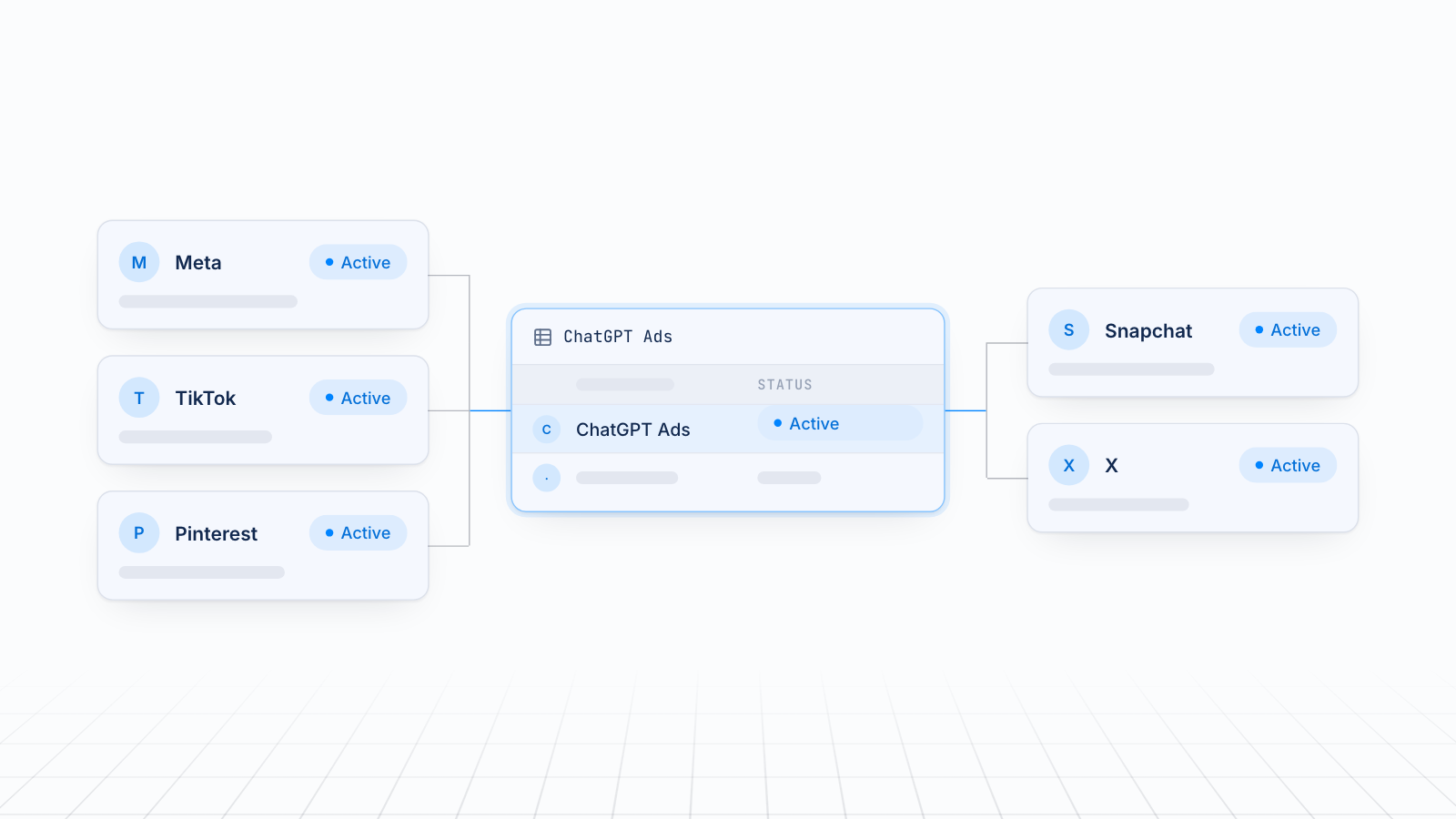
MultiPixels lets you manage the ChatGPT ads pixel next to Meta, TikTok, Pinterest, Snapchat and X from one dashboard.
Why tracking ChatGPT ads conversions matters
Tracking matters because you can't judge money spent on an ad you can't measure. ChatGPT ads are new, and many Shopify advertisers started spending before they had any way to see which sales came from them.
That gap costs you in two ways:
- Wasted ad spend. You can't tell which campaigns pay off, so weak ones keep running.
- Weaker results. Ad platforms learn from the events you send. With no purchase data, there is little for the platform to learn from.
Clear attribution shows you which ads drive sales, so you can move budget toward them. Set the pixel up before you scale spend.
Your two options: manual pixel or an app
You can add the OpenAI pixel by hand through Shopify's customer events, or use an app that does the install for you. Both work. They differ in effort and risk.
| Route | What you do | Where it falls short |
|---|---|---|
| Manual custom pixel | Copy your pixel ID from OpenAI Ads Manager, add a custom pixel in Shopify's customer events settings, paste in the tracking script, save and connect | You work with code. A small mistake can break events or double count them |
| App | Install an app, connect your ad account, pick or create the pixel | You depend on the app's feature set and, for some apps, a monthly fee |
The manual route means pasting a script and mapping each Shopify event to an OpenAI event yourself. That usually means calling a developer. An app skips it.
One warning applies to both: don't paste tracking code into your theme and expect it to catch purchases. Checkout runs in a protected environment, so theme code can't see it. Shopify's customer events settings are the right place for custom pixels.
The apps currently cited for ChatGPT ads tracking
Two kinds of apps come up most often for a ChatGPT ads Shopify app: OpenAI's own ChatGPT Ads app for Shopify, and third-party pixel apps. Here is how they compare with MultiPixels.
| ChatGPT Ads app for Shopify | Omega OpenAI ChatGPT Ads Pixel | MultiPixels | |
|---|---|---|---|
| Built by | OpenAI | Omega | MultiPixels |
| What it does | Connects your ad account, syncs your product catalog and sends commerce events to Ads Manager | Sets up the OpenAI pixel and server-side tracking from one API key, with spend, ROAS and attributed sales shown in Shopify | Installs and manages ad pixels from one dashboard |
| Other ad platforms | ChatGPT ads | ChatGPT ads | Facebook, Instagram, TikTok, Snapchat, X and Pinterest |
| Backup pixel | Check the listing | Check the listing | Yes |
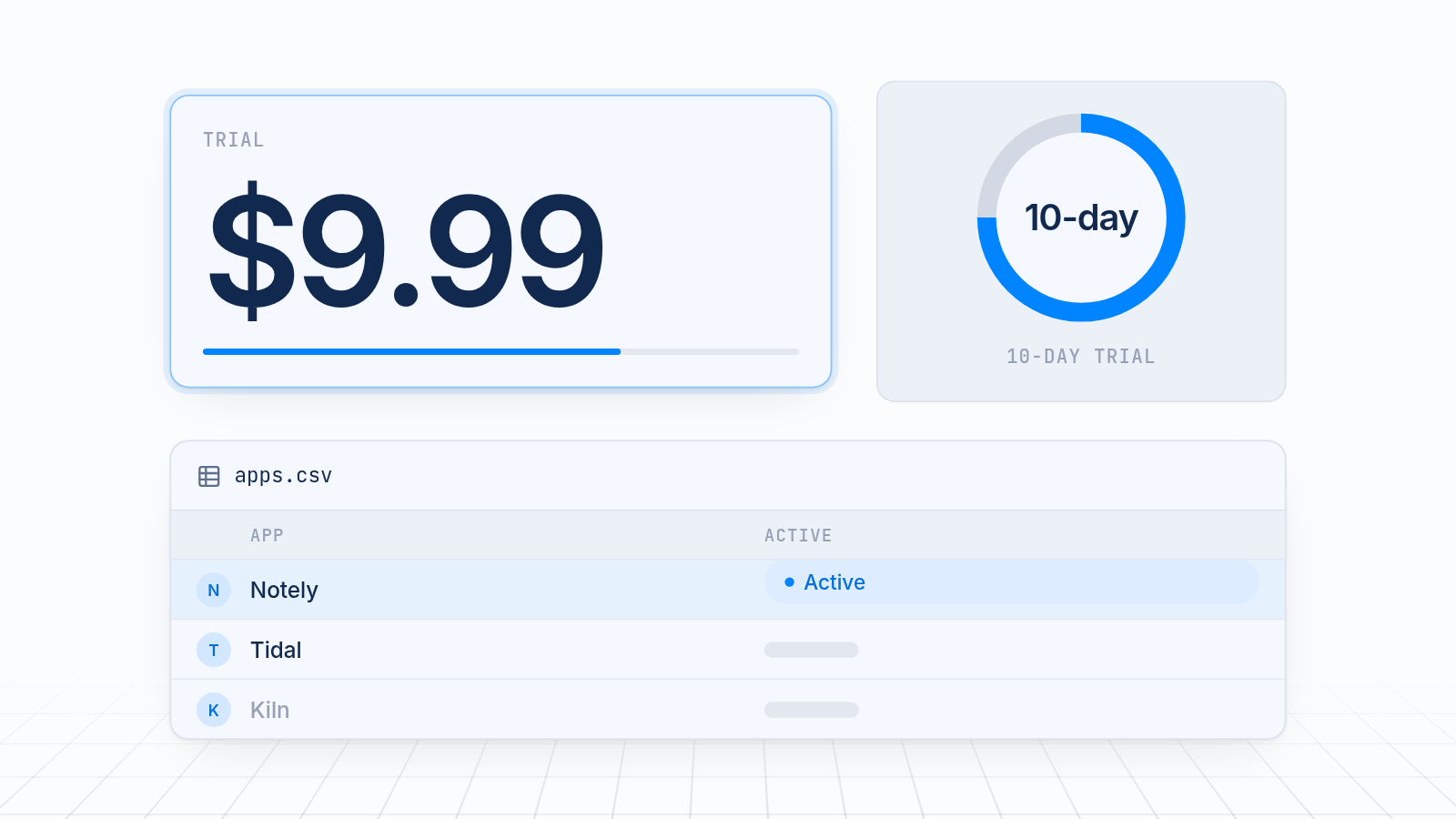
| Price | Check the listing | Check the listing | $9.99, $19.99 or $39.99 a month after a 10-day free trial |
| Setup without a developer | Yes | Yes, per its listing | Yes, no code or tech team required |
The details on the first two come from public descriptions, so confirm them on each listing before you decide. The ChatGPT Ads app is a natural first stop if ChatGPT is your only ad channel. It also syncs your product feed so you can build product ads. The Omega app is built around OpenAI measurement and reporting inside Shopify.
Here is what MultiPixels does today. It manages pixels from Facebook, Instagram, TikTok, Snapchat, X and Pinterest, and it keeps a backup pixel running. Check the current listing and the integrations page for ChatGPT ads support before you plan around it. MultiPixels does not write your ads or replace your ad accounts.
How a multi-pixel app fits alongside ChatGPT ads
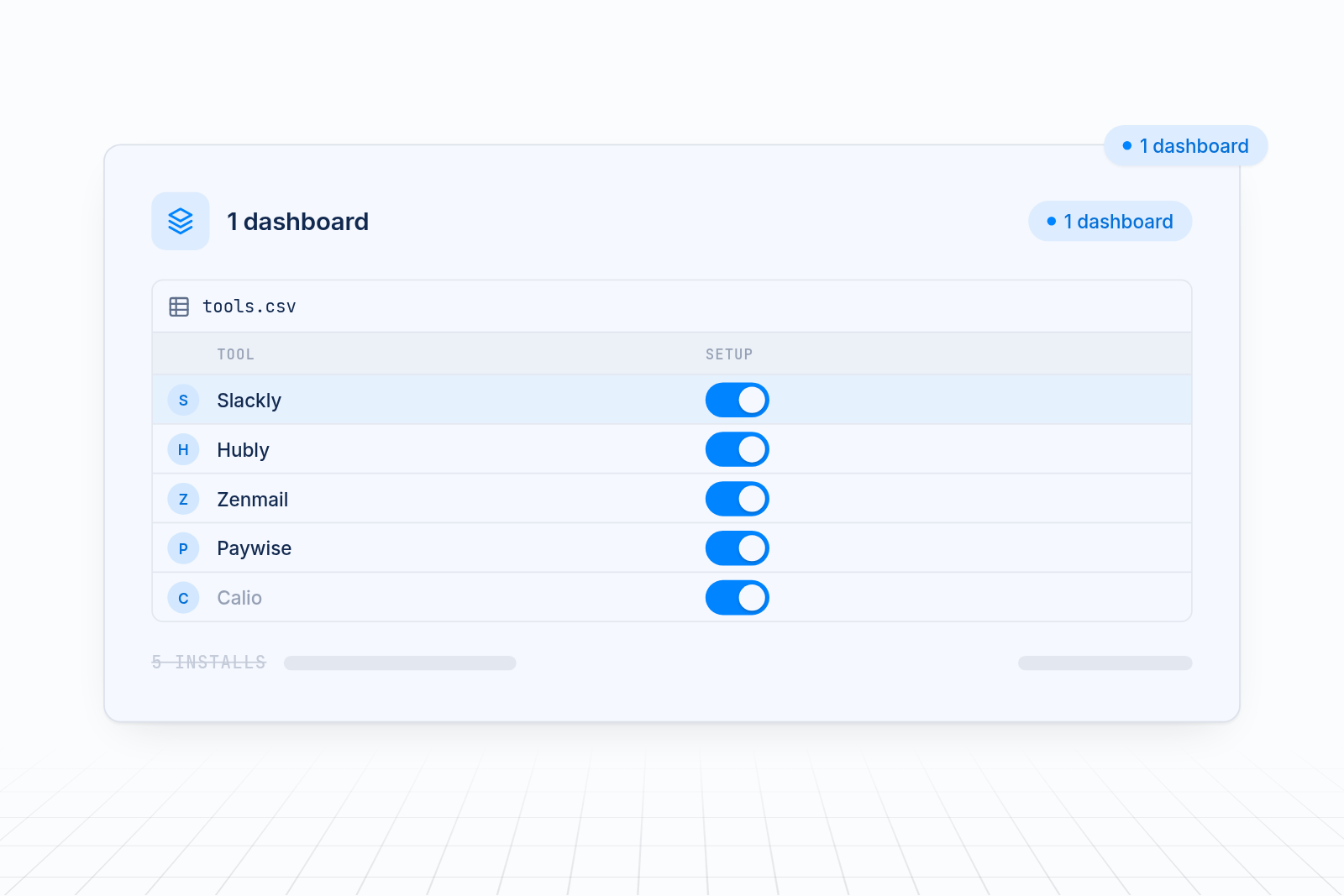
A multi-pixel app fits alongside ChatGPT ads by keeping every pixel in one place, which saves time and avoids mistakes. Most stores that test ChatGPT ads already run at least one other platform. Each platform has its own pixel, and each is one more thing to install and keep clean.
With a multi-pixel app you get:
- One dashboard. You see every installed pixel in one place, so a duplicate is easy to spot.
- No theme edits. The app installs through Shopify, so you don't touch theme files.
- A backup pixel. Data keeps collecting if an ad account runs into trouble.
- Audience tools. Higher plans include a Custom Audience Builder and an FB Lookalikes Builder.
MultiPixels works this way for its six supported platforms. No code or tech team required. For more on the method, see how to add multiple ad pixels without editing theme code.
The five events to send
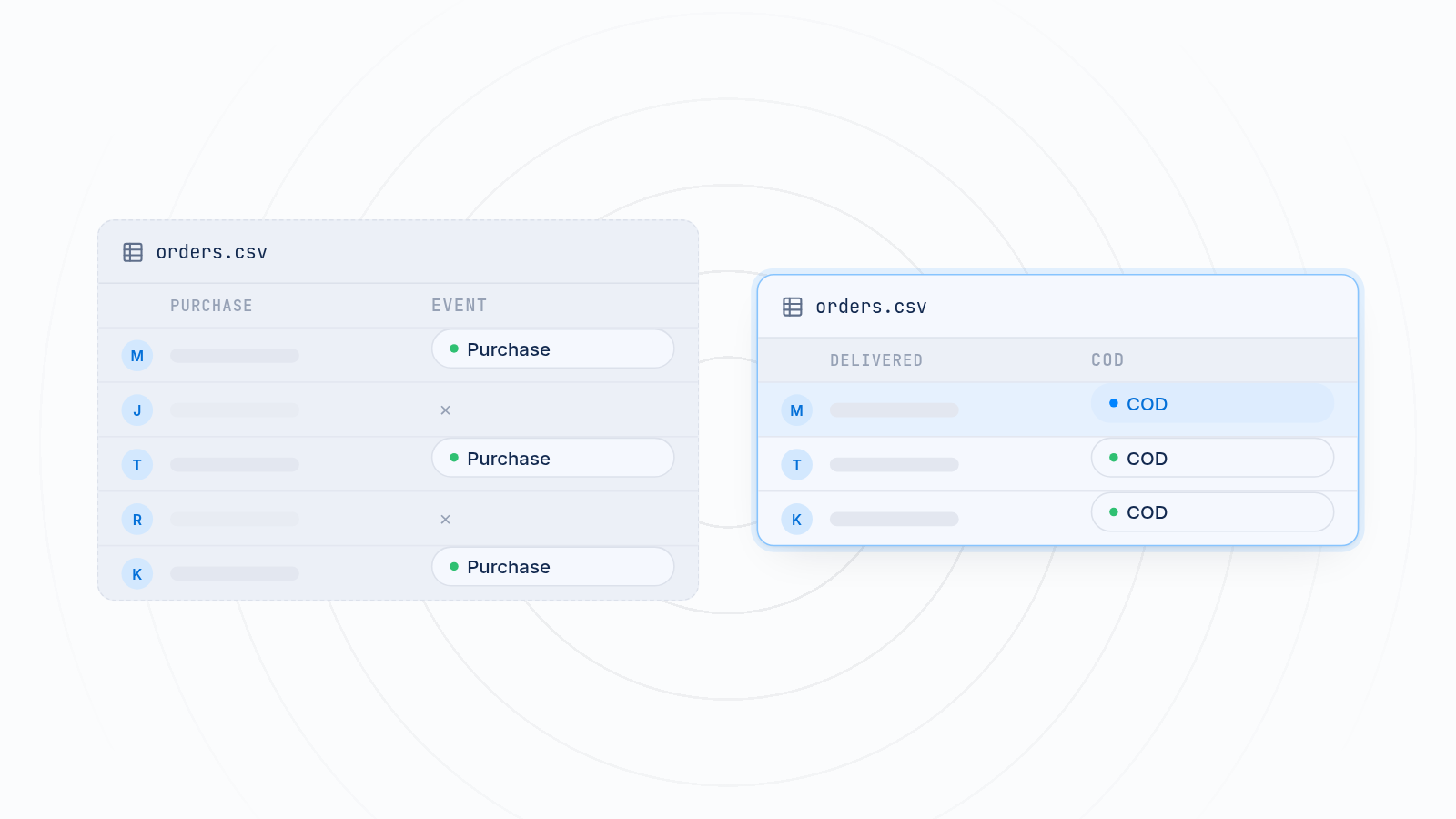
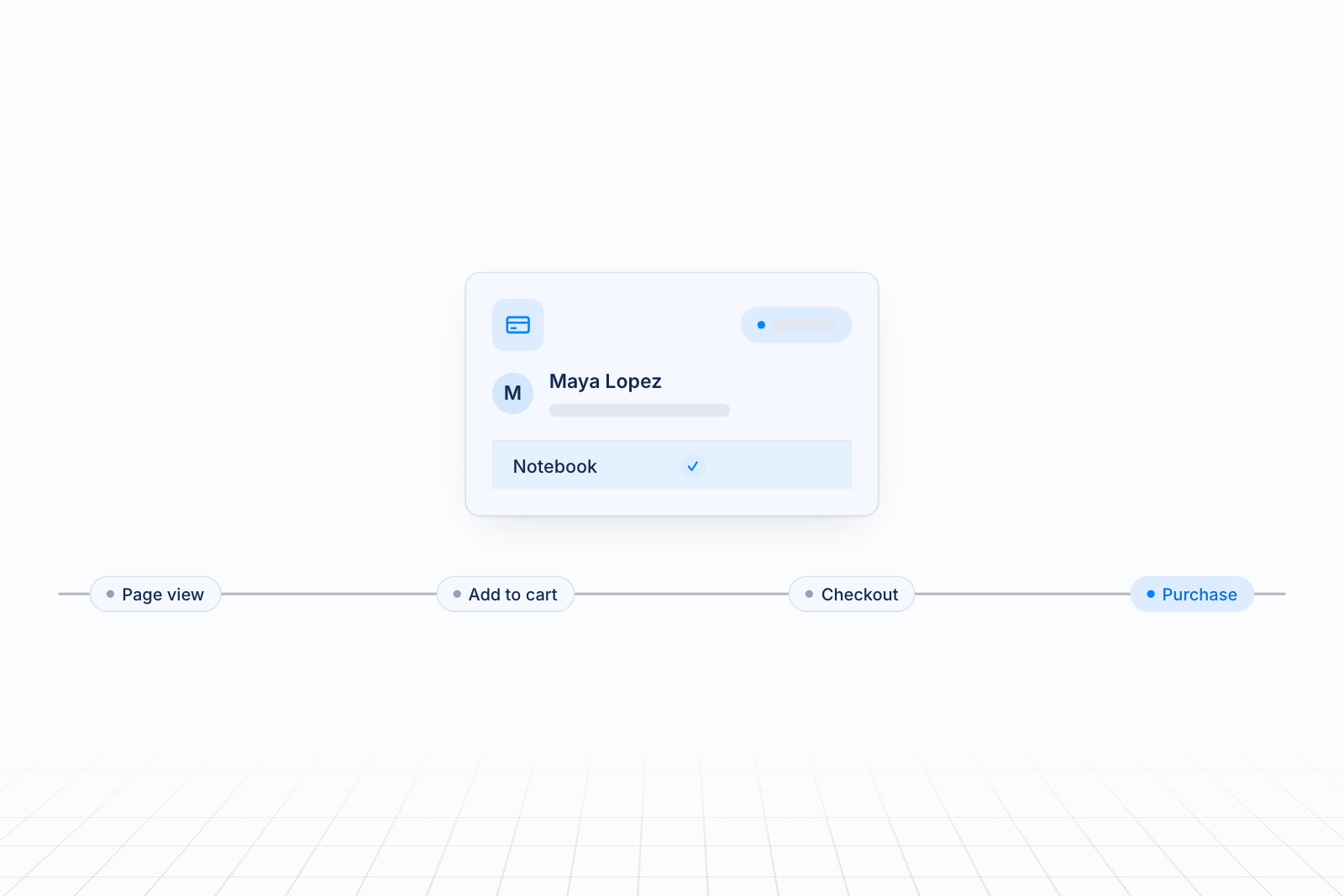
The five events to send are page view, product view, add to cart, checkout started and purchase. Together they show the full path from a first visit to a paid order.
| Event | What it tells the platform |
|---|---|
| Page view | Someone landed on your store |
| Product view | Someone looked at a specific product |
| Add to cart | Someone showed buying intent |
| Checkout started | Someone began paying |
| Purchase | An order was placed, with its value and currency |
Purchase matters most. It should carry the order value and currency, because that lets you see return on ad spend. The earlier events help the platform spot where shoppers drop off.
Send each event once. If the same event goes out from both a browser and a server, the platform needs a way to match them. Without that, one sale can count twice.
How to set it up with an app
Setup with an app takes a few steps and no code. The screens vary by app, but the flow is the same.
- Install the app from the Shopify App Store.
- Connect your ad account. Sign in to OpenAI Ads Manager and choose your account.
- Select or create the pixel. Most apps let you pick an existing pixel or make a new one.
- Approve the connection so Shopify events can flow to Ads Manager.
- Wait for your product feed to sync, if the app builds one, before you create product ads.
Before you start, remove any old OpenAI pixel code you added by hand. Two installs of the same pixel double your counts and skew your results.
How to set up the pixel by hand
To add the OpenAI pixel by hand, use Shopify's customer events, which takes more care than an app. Use this route only if you're comfortable pasting a script.
- In OpenAI Ads Manager, open the conversions area and create a web data source.
- Copy your pixel ID.
- In Shopify admin, go to Settings > Customer events and click Add custom pixel.
- Name it something clear, such as "ChatGPT Ads Pixel".
- Paste in the tracking script from OpenAI, with your own pixel ID in place.
- Set the privacy permissions that fit your region, then click Save and Connect.
If you also installed an app, skip this route. Running both is the most common cause of double counting.
How to confirm the events fire and match Shopify orders
Place a test order, then check that each event appears once in your ad dashboard and that the purchase matches your Shopify order. Do this before you raise spend.
Work through this checklist:
- Walk the path. Visit your store, view a product, add it to the cart and start checkout.
- Complete a test order. Use a real or test order, depending on your setup.
- Check Ads Manager. Confirm page view, product view, add to cart, checkout started and purchase each show up.
- Check the purchase details. The value and currency should match the order.
- Compare to Shopify. Match the purchase count in your ad dashboard against orders in Shopify over the same dates.
Small gaps are normal. Ad platforms count only purchases they can tie to an ad click or view, and they use their own attribution window. A large gap points to a problem.
Common reasons numbers don't match
- The pixel isn't firing, or it fires twice.
- A privacy setting or browser blocking stopped the request.
- Redirects or checkout changes broke the link between the ad click and the order.
- The wrong account, pixel or date range is selected.
- A link shortener or redirect dropped the ad click information before the shopper reached your store.
If your ad data and Shopify disagree, fix the install first. With wrong data, you pay for clicks the platform can't learn from.
Where MultiPixels fits and where it does not
MultiPixels fits store owners who want to manage several ad pixels without code. It installs and manages pixels for Facebook, Instagram, TikTok, Snapchat, X and Pinterest, keeps a backup pixel running, and offers audience tools on higher plans.
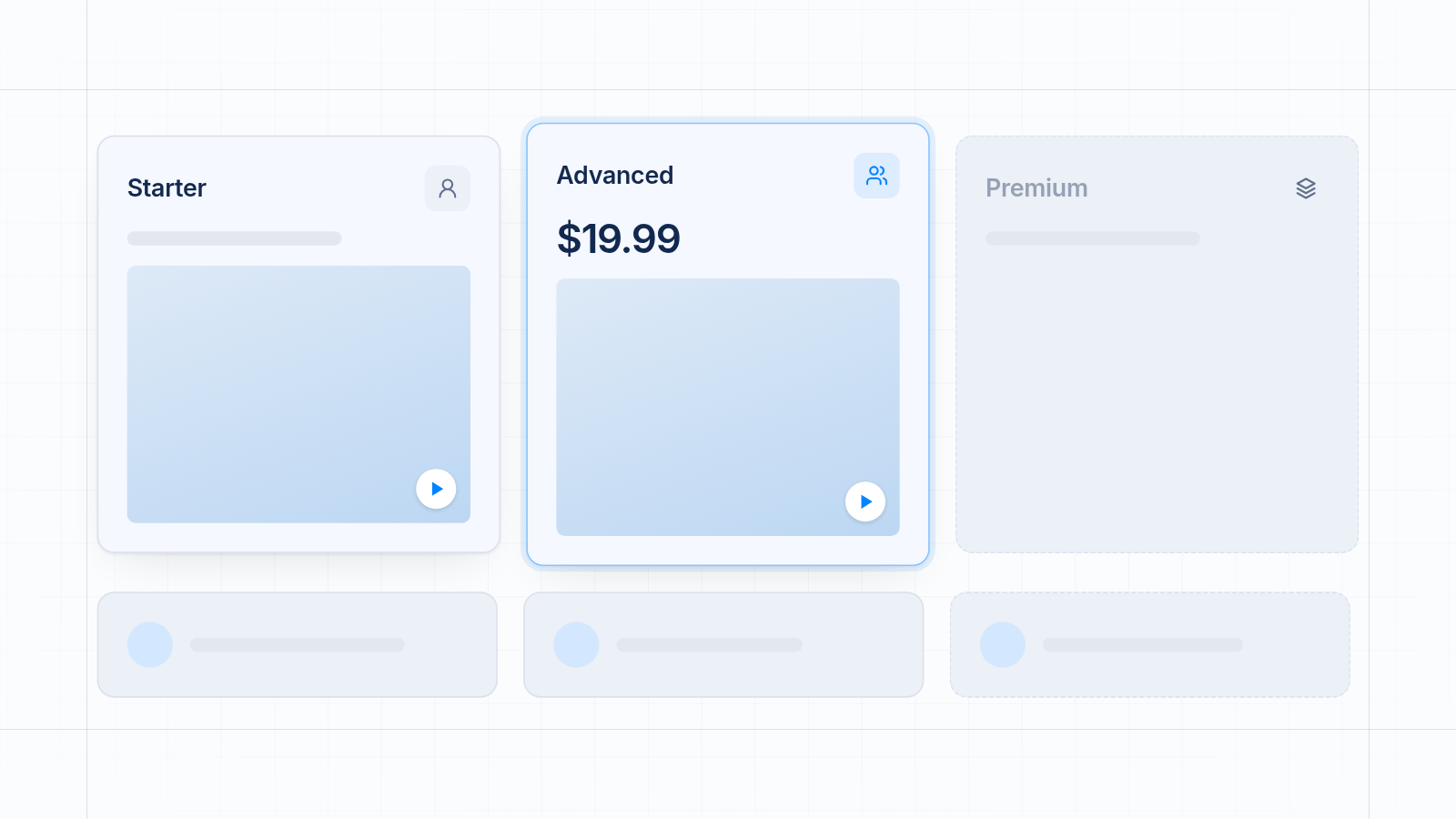
| Plan | Price | What it includes |
|---|---|---|
| Starter | $9.99 a month | Unlimited pixels to install, track and back up |
| Advanced | $19.99 a month | Everything in Starter, plus iOS tracking, a Custom Audience Builder and an FB Lookalikes Builder |
| Premium | $39.99 a month | Everything in Advanced, for Shopify Plus |
Every plan starts with a 10-day free trial. MultiPixels is a paid app once the trial ends. It does not write your ads, change your budgets or replace your ad accounts. If ChatGPT is the only channel you run and you want OpenAI's own catalog sync, OpenAI's app may be enough on its own.
Start tracking with MultiPixels
Accurate tracking shows you which ads drive sales and keeps your budget from going to waste. Install the MultiPixels app from Shopify and start the 10-day free trial to manage your pixels from one dashboard, with no code or tech team required.