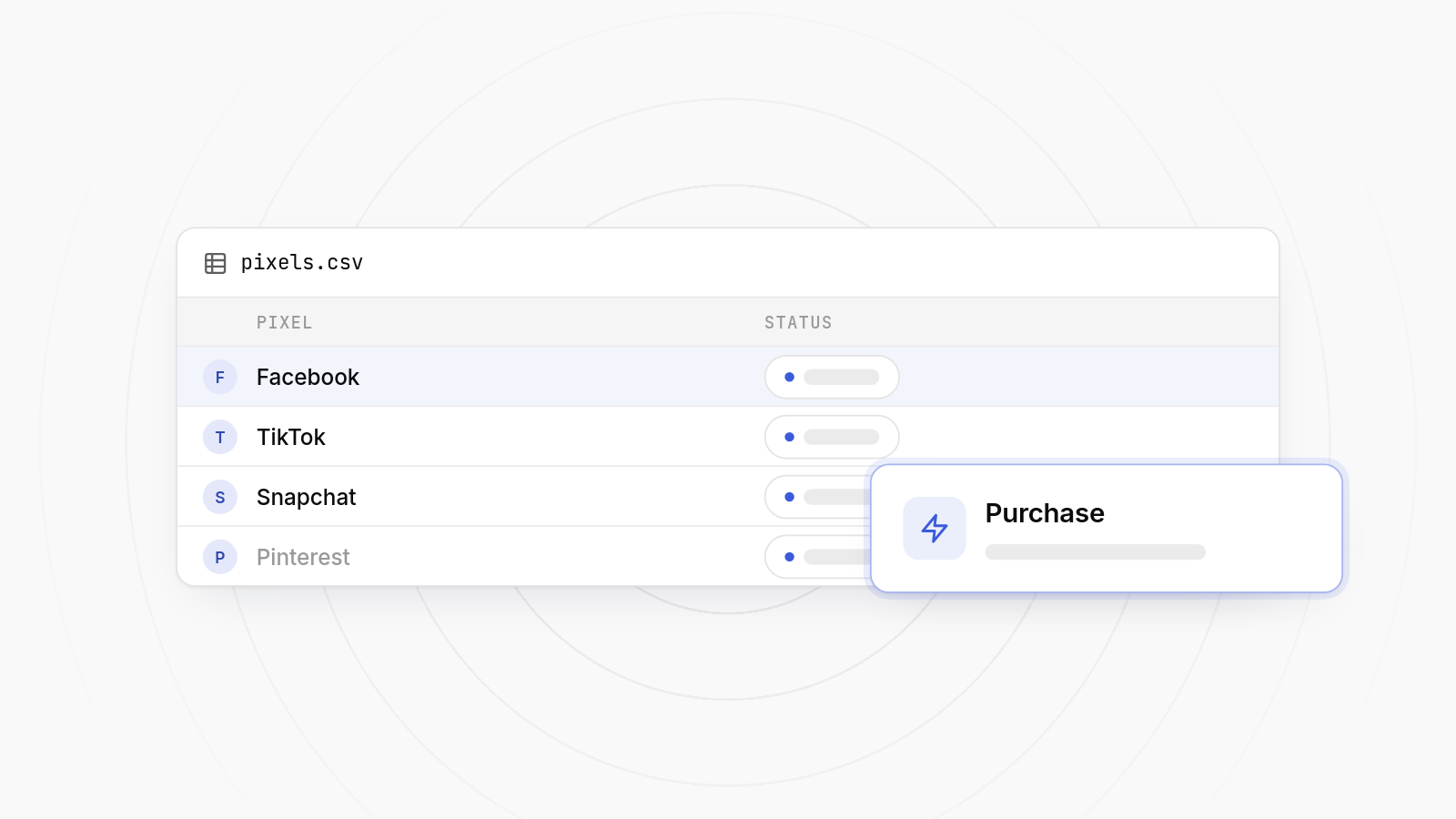
The best Shopify app to install Facebook TikTok pixels without coding is one that runs on Shopify's customer events, supports every platform you advertise on, and lets you manage all your pixel IDs in one place. MultiPixels does this for Facebook, TikTok, Instagram, Snapchat, X and Pinterest, with no theme edits. If you only run one pixel per platform, the native Shopify channels may be enough. This post covers when that is true.
An app registers a pixel with Shopify's customer events system, and Shopify runs it for you. You don't paste scripts into your theme.
Shopify supports two kinds of pixels. App pixels come from an installed app or sales channel. Custom pixels are code you write or paste yourself in the Customer events area of the admin (our guide to custom pixels on Shopify explains how they work). Both run in a sandboxed environment, separate from your theme files. Shopify describes app pixels as the officially supported route.
So tracking is no longer tied to theme.liquid. In the old approach, a pixel snippet lived inside the theme. Switch themes, update a theme, or let a developer rewrite a template, and the snippet could vanish or fire twice. An app pixel doesn't involve the theme. Shopify publishes standard events such as page views, product views, add to cart and checkout. The app listens for them and passes them on to each ad platform.
The pixel lives in your store's settings, not in the theme, so a theme change leaves it alone. You can test a new theme, roll back to an old one, or let a designer rework your product pages without re-adding a tag. Checkout is covered too, since customer events include checkout steps, which theme code often can't reach.
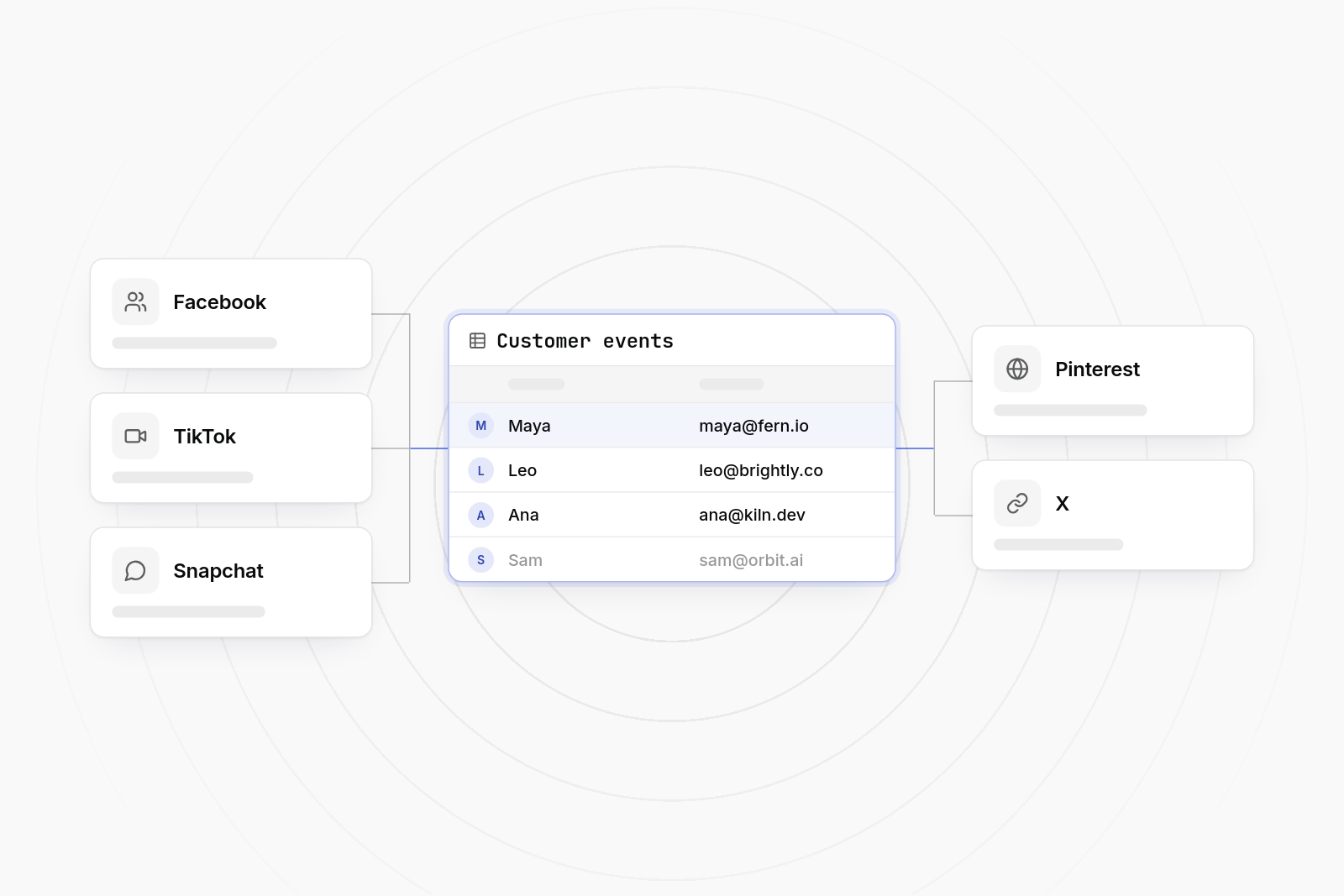
Five things: platforms supported, server-side events, page speed impact, event coverage, and how easily you can manage multiple pixel IDs.
List every platform you advertise on now and any you might add in a year. An app that covers Facebook and TikTok but not Snapchat, Pinterest or X means installing a second tool later, and two tools can fire duplicate events.
Browser pixels can lose events to ad blockers and privacy settings. Server-side events, such as Meta's Conversions API and TikTok's Events API, send data from a server instead. Ask whether the app works as a Shopify server-side pixel app for the platforms you use, and whether it deduplicates browser and server events with a shared event ID. For more background, see our server-side tracking setup guide for Shopify.
Every script you add to a storefront has a cost. Apps that use Shopify's sandboxed pixel framework keep tracking code out of your theme, which generally keeps the storefront lighter than stacking several snippets in the theme. Check the app's listing and reviews for comments on speed, then measure your own store before and after.
You want the standard commerce events: view content, add to cart, initiate checkout, add payment info and purchase. Without them you can't build good lookalike audiences or judge ad attribution.
If you run more than one pixel per platform, or several platforms, you want one dashboard where each ID is listed, switched on or off, and edited. Hunting through separate apps for each platform is where mistakes creep in. If you need several Meta pixels specifically, here is how to add multiple Facebook pixels in Shopify.
MultiPixels installs as a Shopify app. You add each platform's pixel ID in its dashboard instead of editing your theme. It covers Facebook, TikTok, Instagram, Snapchat, X and Pinterest, and is used for tracking conversions, building lookalike audiences and improving ad attribution. You can see the platforms it connects on the integrations page.
theme.liquid, any checkout scripts and your existing sales channels for pixels you already have. Remove duplicates first so you don't double-count.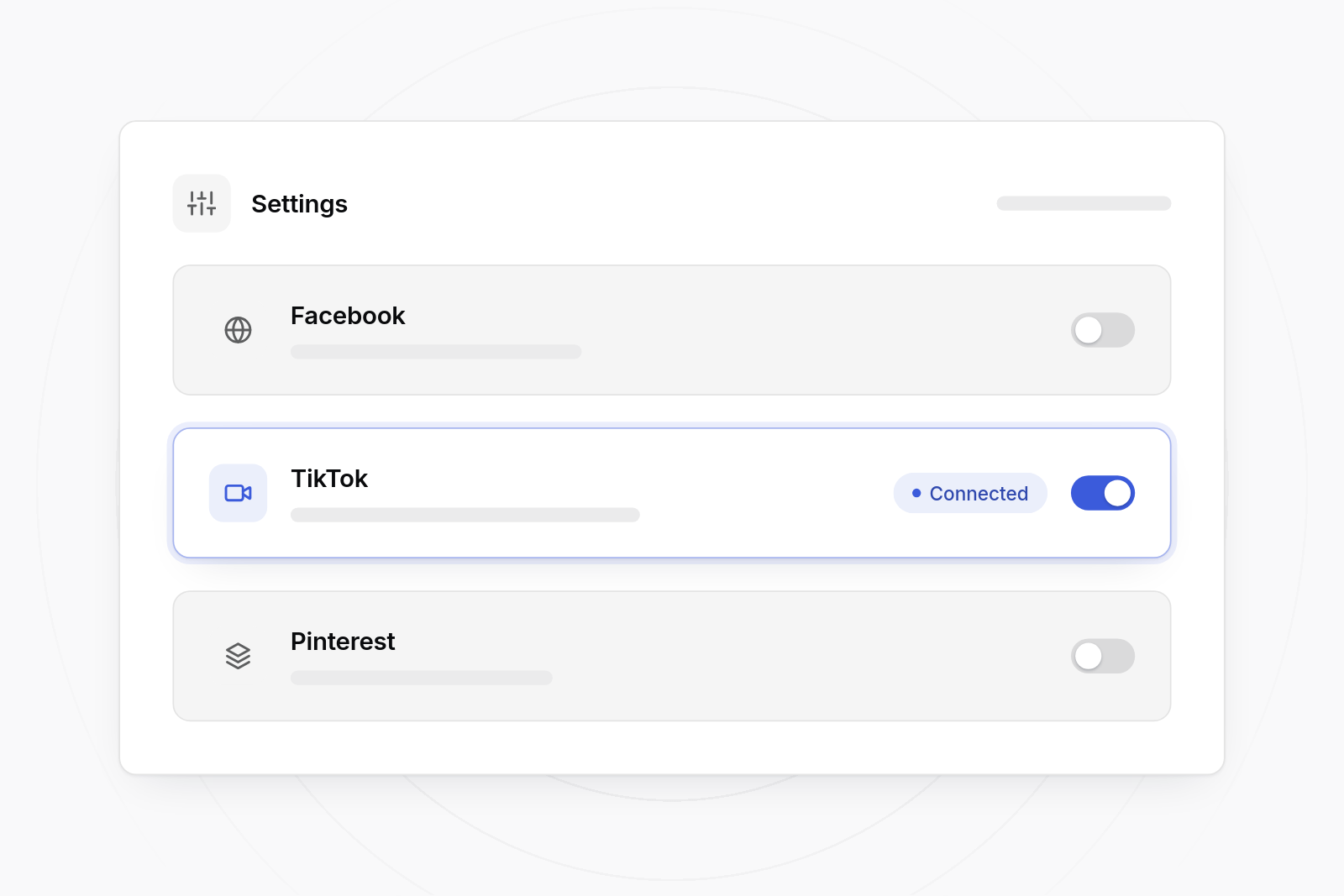
Native channels suit stores with one pixel per platform, custom pixels suit teams with a developer, and a multi-pixel app suits stores running several platforms or pixels. The table shows where each option stops being enough.
| Option | What it does | Where it falls short | |---|---|---| | Meta (Facebook & Instagram) channel | Installs one Meta pixel with Shopify's supported setup | Meta only; usually one pixel | | TikTok channel | Installs the TikTok pixel and connects your catalog | TikTok only | | Pinterest, Snapchat and other platform channels | Official setup for that single platform | Each is a separate app with its own settings | | Google & YouTube channel | Handles Google tracking and listings | Does not cover the social pixels | | Manual custom pixels | Paste any platform's JavaScript into Customer events | You write and maintain the code and event subscriptions | | Other pixel apps | Manage several pixels in one app | Platform lists, server-side support and pricing vary, so check each listing | | MultiPixels | Manages Facebook, TikTok, Instagram, Snapchat, X and Pinterest pixels from one dashboard, without theme edits | Built for pixels and audiences; it is not a full ad management or analytics suite |
If you advertise on one or two platforms and need a single pixel on each, the official channels are the simplest choice. They are free, supported by the platforms and need no extra app. The downside is that each channel has its own settings, and adding a second pixel for the same platform is often not possible.
If you have a developer and a platform with no app, a custom pixel works. You paste JavaScript, subscribe to Shopify events and keep it updated yourself. It's flexible, but it is code, which is what you were trying to avoid.
Choose an app when you run three or more platforms, use more than one pixel per platform, or want one place to see what is firing. Fewer installed tools also means fewer chances of duplicate purchase events.
The most common one is running the same pixel through more than one method, which counts page views and purchases twice.
Shopify warns about this itself. Old code can sit in theme.liquid, in checkout scripts or in a sales channel you forgot about. Before adding anything, list every place a pixel might live and remove the extras.
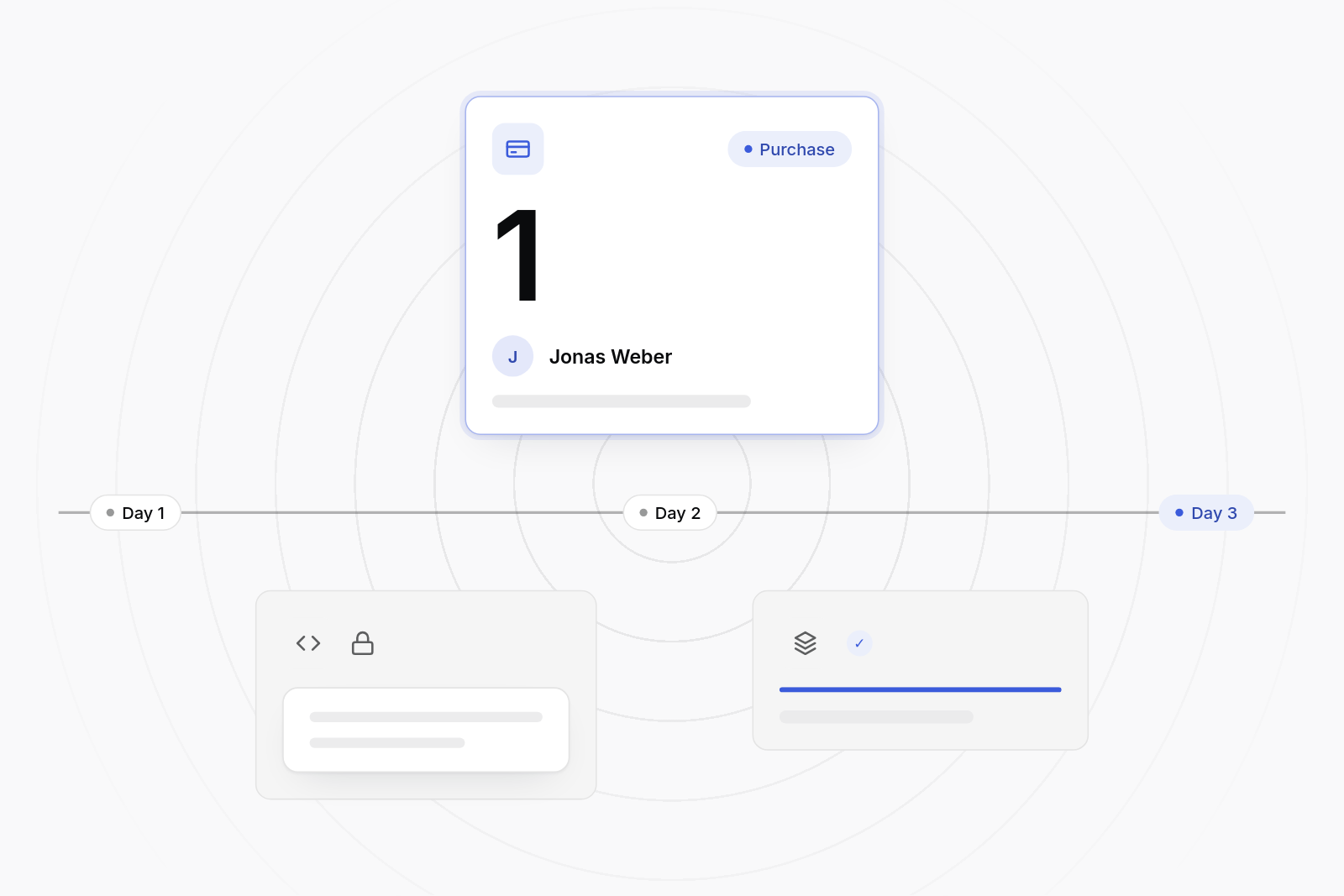
Other things to watch:
The simplest route is the Facebook & Instagram channel, which connects your Meta pixel through Shopify's supported setup. If you need more than one pixel or want to manage it beside other platforms, add the pixel ID in an app like MultiPixels instead. Either way, remove old pixel code from your theme first.
You can use TikTok's own Shopify channel, or paste your TikTok pixel ID into an app such as MultiPixels. Both run through Shopify's pixel framework, so you don't edit theme code. After installing, check events in TikTok's events manager and place a test order.
Create the pixel in your TikTok ads account to get its ID, then connect it to your store through the TikTok channel or a pixel app. Confirm that view content, add to cart, checkout and purchase events appear before you run ads.
Yes, but browser-only tracking can miss events because of ad blockers and privacy settings. Adding server-side events through Meta's Conversions API, with deduplication, helps fill those gaps.
Use one method per pixel. Don't connect the same pixel through a sales channel, a custom pixel and an app at once. Keep all pixel IDs in one dashboard and test a purchase after every change.
Grow your business with MultiPixels.
Get started
Clyde Offices, 2nd Floor, 48 West George Street, Glasgow G2 1BP